Set up custom mail settings
AI summary
Configure Rencore Governance to send emails from your own account instead of from Rencore.com using SendGrid, SMTP, or Microsoft 365. Choose whether custom mail settings apply to automation messages only or to both automation and system messages. You need the Manage mail settings permission, and you must test each configuration before applying it.
Send Rencore Governance emails from your own account. By default, Rencore Governance sends emails that appear to come from Rencore.com. Use custom mail settings for automation messages only, or for automation and system messages.
Before you begin
- Your role needs the Manage mail settings permission. The Admin and Owner roles have it. See Rencore roles.
- You need a SendGrid account, an SMTP server or a Microsoft 365Microsoft 365Microsoft 365 is the Microsoft cloud suite of Teams, SharePoint, OneDrive, Exchange and the Office apps.Read more account to send from.
Steps
-
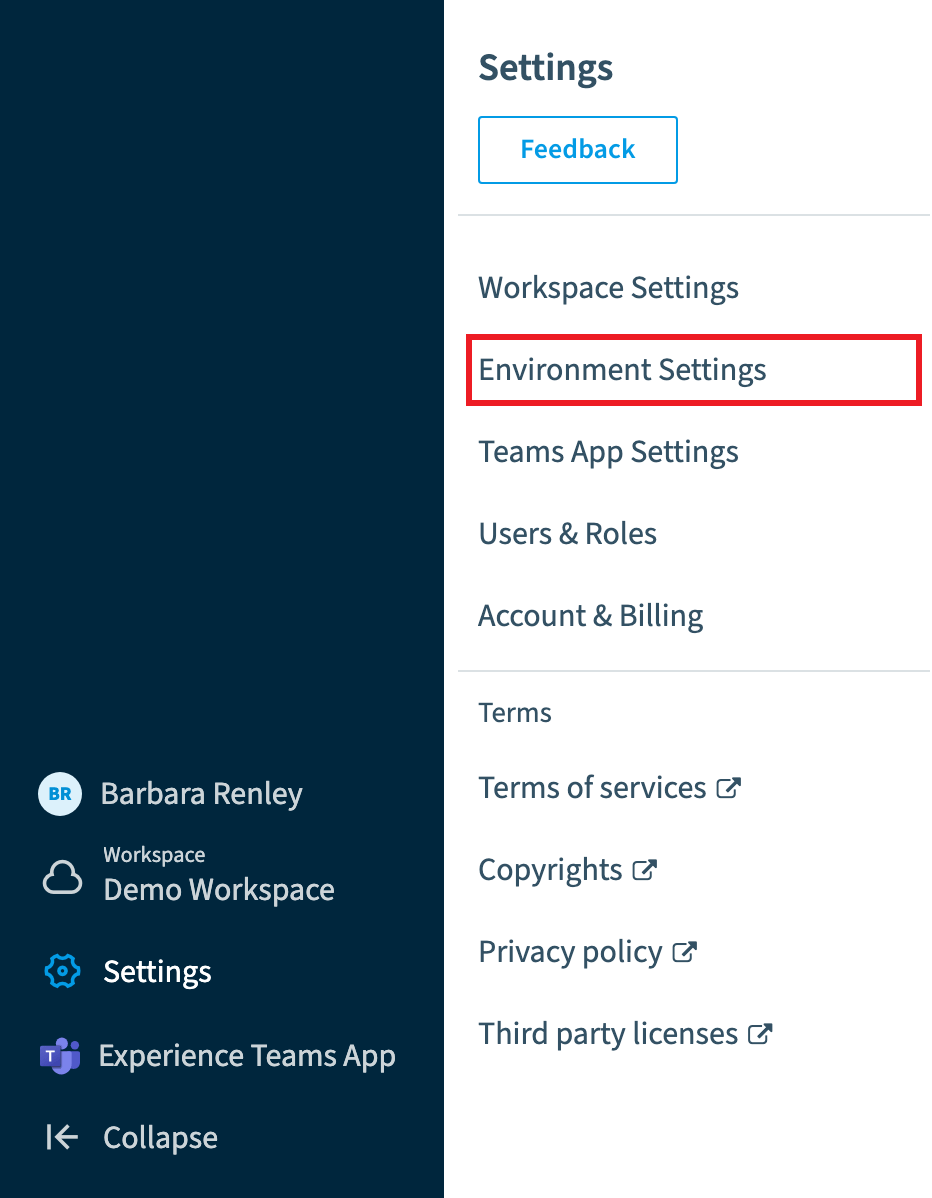
Go to Settings > Environment Settings > Mail Settings.
-
Click Custom server.
-
In the dialog, under Message Type, choose how the custom mail settings are used:
- AutomationAutomationAn automation is a workflow Rencore Governance runs on inventory objects when a trigger fires.Read more messages only: the custom mail server is only used for Automation messages.
- Automation and System messages: it is used for both Automation and System messages.
-
Under Service Type, choose “Sendgrid”, “SMTP” or “M365 Account”, then follow the steps for that service below.
SendGrid
-
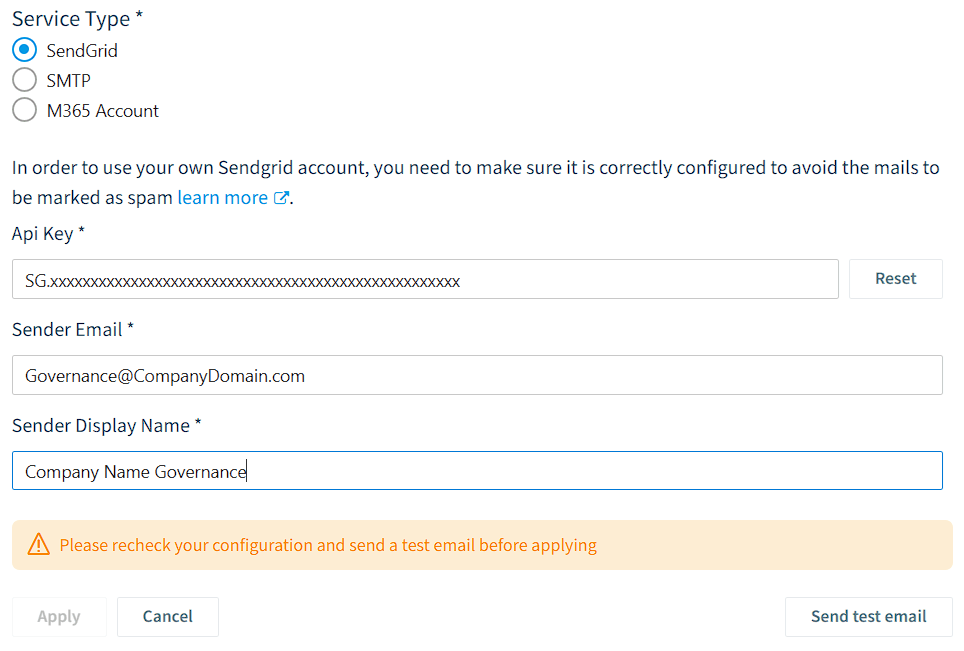
In API Key *, enter the SendGrid API key you obtained from SendGrid (as detailed here). If a key is already present, click Reset first.
-
In Sender Email *, enter a valid email address that the emails will be sent from (e.g. [email protected]).
-
In Sender Display Name *, enter a display name.
-
Click Send test email to test the settings and see the results.
-
Click Apply to save the settings.
You cannot apply the settings until a successful test is performed.
SMTP
To use SMTP, first configure an SMTP server (e.g. as detailed here for M365 or here for Google).
-
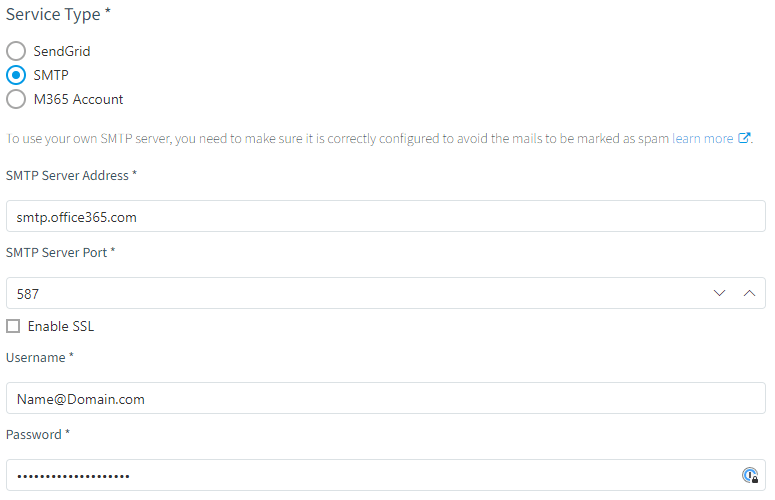
In SMTP Server Address *, enter the server address (e.g. smtp.gmail.com).
-
In SMTP Server Port *, enter the port and whether or not it is SSL.
-
In Sender Email, enter a custom sender email if the username is not an email address.
-
In Username *, enter your username (for example [email protected]).
-
In Password *, enter the password for the account (sign in to the account before you set up the configuration).
-
Click Send test email to test the settings and see the results.
-
Click Apply to save the settings.
You cannot apply the settings until a successful test is performed.
 Microsoft 365 account with your own consent
The user who gives consent is the email sender the system uses. If you need a specific email address, sign in with that account. The account needs a license that allows owning an ExchangeExchange OnlineExchange Online is the Microsoft 365 mail and calendar service. Rencore Governance covers it with the Exchange connector, part of the Digital Workplace module.Read more mailbox (e.g. an E3 license), and its mailbox must already be created.
-
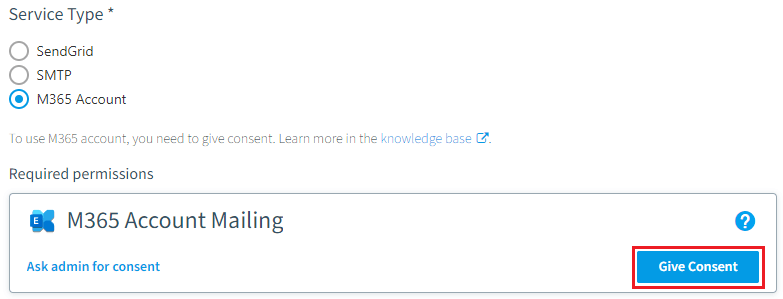
Click Give Consent. A warning says the user needs specific roles and licenses.
-
Click Give delegated consent.
-
Sign in with an account that meets the criteria above.
-
Read the information in the dialog window.
-
Turn on Consent on behalf of your organization.
-
Click Accept.
-
Click Send test email to test the settings and see the results.
-
Click Apply to save the settings.
You cannot apply the settings until a successful test is performed.
Microsoft 365 account with admin consent
-
Click Ask admin for consent. Rencore Governance shows a URL.
-
Copy the URL and give it to the global adminGlobal administratorGlobal Administrator is the Microsoft Entra admin role with access to every administrative feature in the tenant, including giving admin consent to apps for the whole organization.Read more of your tenant to start the consent process. Or click Send link as mail, which opens an email in your default email app, enter the email address of the global admin and send it.
-
Click Send test email to test the settings and see the results.
-
Click Apply to save the settings.
You cannot apply the settings until a successful test is performed.
Limits
Delegated permissionsApplication and delegated permissionsApplication and delegated permissions are the two kinds of Microsoft permissions Rencore Governance asks for.Read more are a security model used in Microsoft Entra IDMicrosoft Entra IDMicrosoft Entra ID, formerly Azure Active Directory, is the Microsoft identity service behind every Microsoft 365 tenant.Read more to give resource access to a Web API for the currently signed-in user. With a Microsoft 365 account, emails are sent as the user who gave consent.
Frequently asked questions
Which permission do I need to change the mail settings in Rencore Governance?
You need the Manage mail settings permission. The Admin and Owner roles have it.
Can I use my own mail server for system messages as well as automation messages?
Yes. Under Message Type, choose Automation and System messages to use the custom mail server for both. Choose Automation messages only to use it for Automation messages alone.
Which services can I use to send Rencore Governance emails from my own account?
You can use SendGrid, an SMTP server or a Microsoft 365 account. Choose one of these under Service Type in the Custom server dialog.
Why can I not click apply when I set up custom mail settings?
You cannot apply the settings until a successful test is performed. Click Send test email, check the result, and then click Apply to save the settings.
Which account sends the emails when I use a Microsoft 365 account with my own consent?
Which account sends the emails when I use a Microsoft 365 account with my own consent?The user who gives consent is the email sender the system uses. To send from a specific email, sign in with that account. It needs a license that allows owning an Exchange mailbox, and its mailbox must already be created.
Was this page helpful?
Thanks for the feedback.
Thanks. What was wrong?