Copy Environment information
AI summary
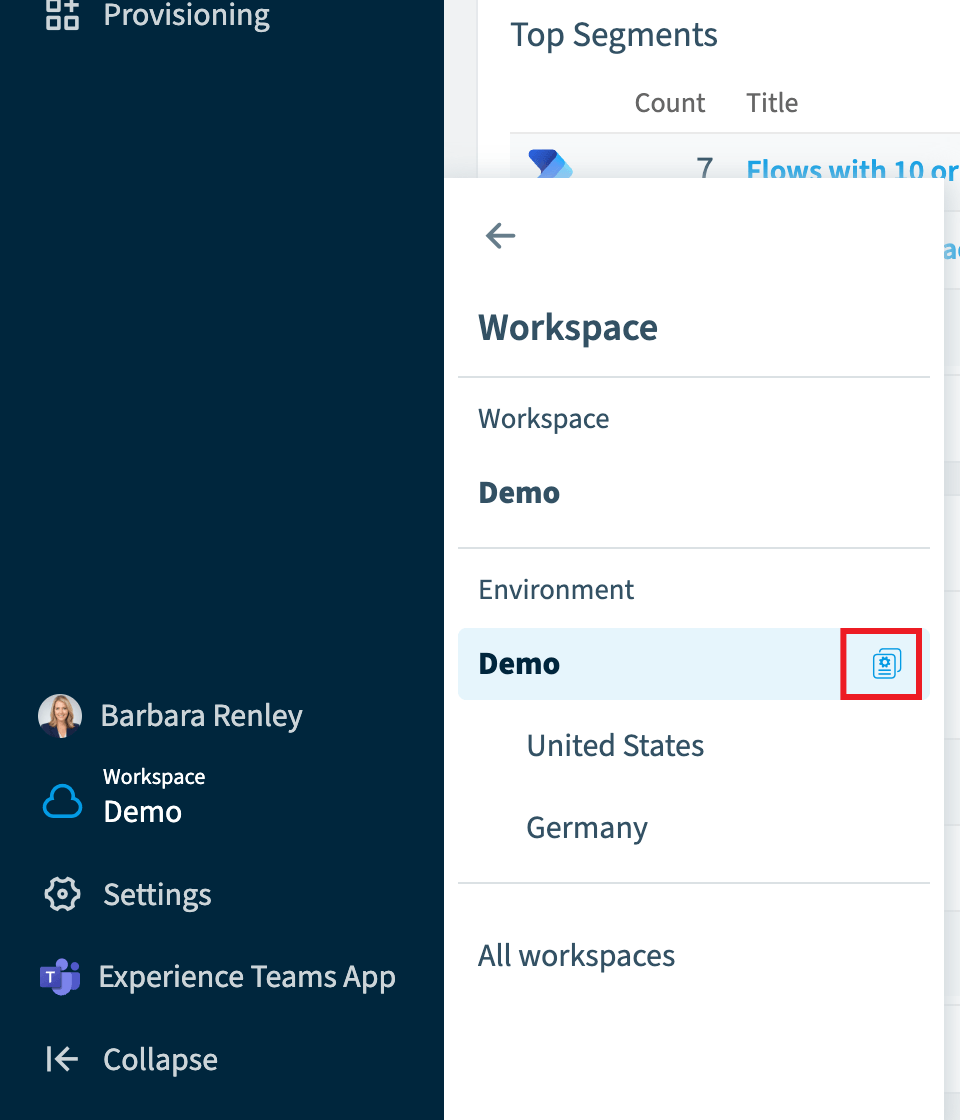
Copy your Workspace and Environment details before contacting Support to include with your request. Click the Workspace and Environment Selector on the Nav Panel, hover over the Environment, and click the icon.
Copy the details of your WorkspaceWorkspaceA Workspace is the top-level container in Rencore Governance. It holds the settings, users, roles and connected apps for exactly one Environment, the connected Microsoft 365 tenant.Read more and EnvironmentEnvironmentAn Environment is the connected Microsoft 365 tenant inside a Workspace.Read more to your clipboard. Do this before you contact Support about a problem in Rencore Governance, so our team can help you faster.
Before you begin
- Any role can copy this information. It comes from the Workspace & Environment selector, which every user sees.
Steps
-
Open the Workspace and Environment where you had the problem.
-
On the Nav Panel, click the Workspace & Environment Selector.
-
Hover over the Environment and click the icon that appears.
-
Paste the copied details into your support request.
What you see
A notification in the top right of Rencore confirms the details have been copied to your clipboard. Your clipboard holds:
- Workspace: <your workspace name>
- Workspace Id: <your workspace id>
- Environment Name: <your environment name>
- Environment Id: <your environment id>
- Tenant Domain: <your tenant domain>
- User Name: <your user name>
- User Email: <your email address>
- User Role: <your Rencore Governance roles>
- User TeamsMicrosoft TeamsMicrosoft Teams is the Microsoft 365 app for chat, meetings and team collaboration.Read more: <your Rencore Governance team memberships>
Frequently asked questions
How do I copy my Workspace and Environment details for a support request?
Open the Workspace and Environment where you had the problem. Click the Workspace & Environment Selector on the Nav Panel, hover over the Environment, and click the icon that appears. Then paste the copied details into your support request.
Do I need a specific role to copy the Environment information?
No. Any role can copy this information. It comes from the Workspace & Environment selector, which every user sees.
What details are copied to my clipboard from the Environment selector?
The clipboard holds the Workspace name and Id, the Environment name and Id, and the Tenant Domain. It also holds your user name, email, Rencore Governance roles, and team memberships. A notification in the top right of Rencore confirms the copy.
Was this page helpful?
Thanks for the feedback.
Thanks. What was wrong?