Change an Environment currency
AI summary
Change your Environment currency when your organization reports costs in a different currency. Go to Settings > Environment Settings > General Settings to select the new currency if you have the Edit Environment permission; the change applies with the next scan.
Change the currencyLicense cost and currencyLicense cost and currency are the values Rencore Governance uses to show Microsoft 365 license costs in the inventory, reports and policies.Read more an EnvironmentEnvironmentAn Environment is the connected Microsoft 365 tenant inside a Workspace.Read more uses for values such as license costs. Do this when your organization reports costs in a different currency.
Before you begin
- Your role needs the Edit Environment permission. The Admin and Owner roles have it. See Rencore roles.
Steps
-
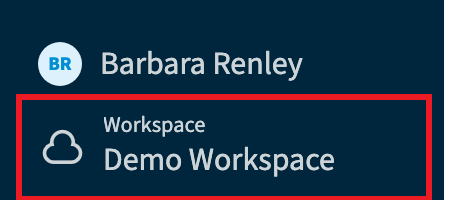
Select the Environment in the Workspace & Environment selector.
-
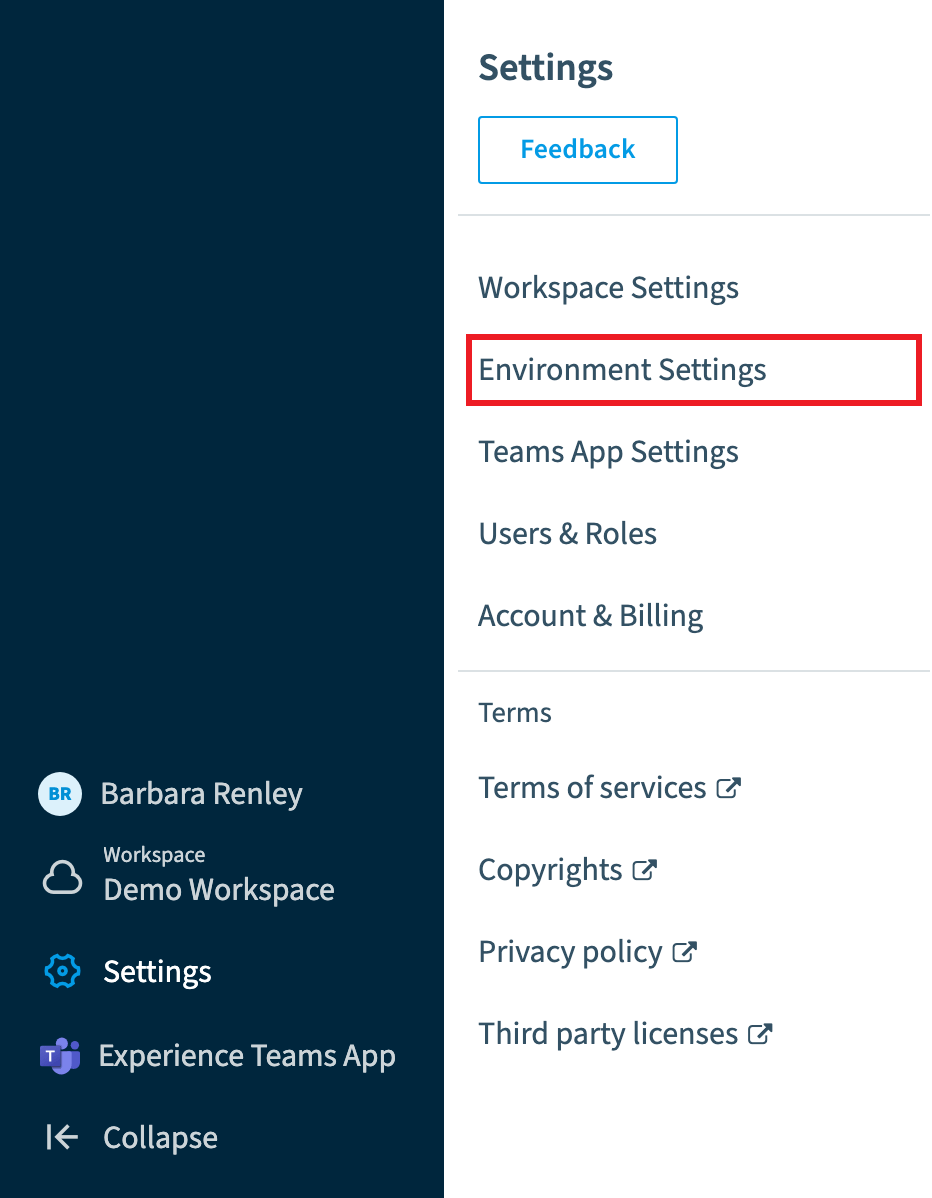
Go to Settings > Environment Settings.
-
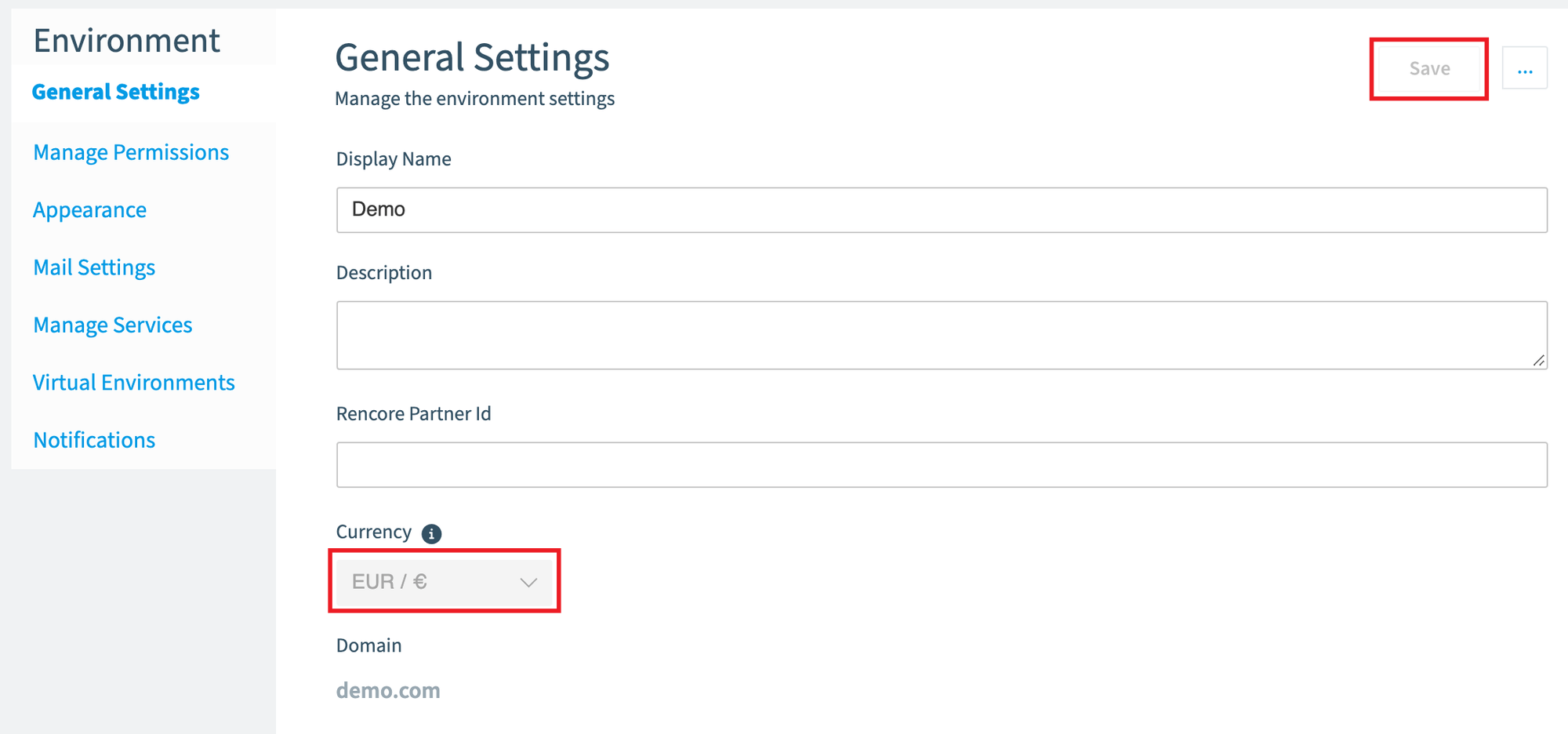
On General Settings, change the Currency to the one you want.
-
Click Save.
What you see
Changes to currency values are applied with the next scan of the affected areas (e.g. the M365Microsoft 365Microsoft 365 is the Microsoft cloud suite of Teams, SharePoint, OneDrive, Exchange and the Office apps.Read more scan for licenses). Until then, all currency values still show the old currency (e.g. License Costs).
Frequently asked questions
Which permission do I need to change the currency of an Environment?
You need the Edit Environment permission. The Admin and Owner roles have this permission.
Where do I set a different currency for my Environment?
Select the Environment in the Workspace & Environment selector, then go to Settings > Environment Settings. On General Settings, change the Currency and click Save.
Why do license costs still show the old currency after I change the Environment currency?
Currency changes are applied with the next scan of the affected areas, for example the M365 scan for licenses. Until that scan runs, all currency values, such as License Costs, still show the old currency.
Was this page helpful?
Thanks for the feedback.
Thanks. What was wrong?