Add a Virtual Environment
AI summary
Create a Virtual Environment (tenant segmentation) to logically group your Microsoft 365 tenant data and apply targeted policies and reporting to specific departments, regions or projects. The five-stage builder lets you select data, apply filters, choose dashboards, checks and reports, then provide details about your segmentation. You need Create Virtual Environment permission to use this feature.
Add a Virtual EnvironmentVirtual EnvironmentA Virtual Environment is a logical segment of the data in one Microsoft 365 tenant, for example a department, region or subsidiary.Read more (tenant segmentation) to group the data of one Microsoft 365 tenantMicrosoft 365 tenantA Microsoft 365 tenant is the dedicated instance of Microsoft 365 that holds an organization's users, groups, data and settings.Read more logically, so you can apply targeted policies and reporting to specific departments, regions or projects. A Virtual Environment has its own permissions, appearance and managed services, applied independently from the root EnvironmentEnvironmentAn Environment is the connected Microsoft 365 tenant inside a Workspace.Read more.
Before you begin
- Your role needs the Create Virtual Environment permission. The Admin, Contributor and Owner roles have it. See Rencore roles.
- Tenant Segmentation (Virtual Tenants) is included in the Enterprise PlanPlanA Plan is the edition of Rencore Governance in your Subscription: Professional, Premium or Enterprise.Read more.
- Each Tenant Segmentation that is created affects the duration of the M365Microsoft 365Microsoft 365 is the Microsoft cloud suite of Teams, SharePoint, OneDrive, Exchange and the Office apps.Read more scan finalizing phase. The more complex the segmentation, the larger the impact.
Steps
-
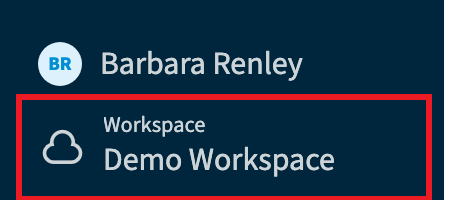
On the Nav Panel, select the Environment in the Workspace & Environment Selector.
-
Go to Settings > Environment Settings > Virtual Environment.
-
Click Add Virtual Environment. The builder has five stages, described below.
Data and filters
-
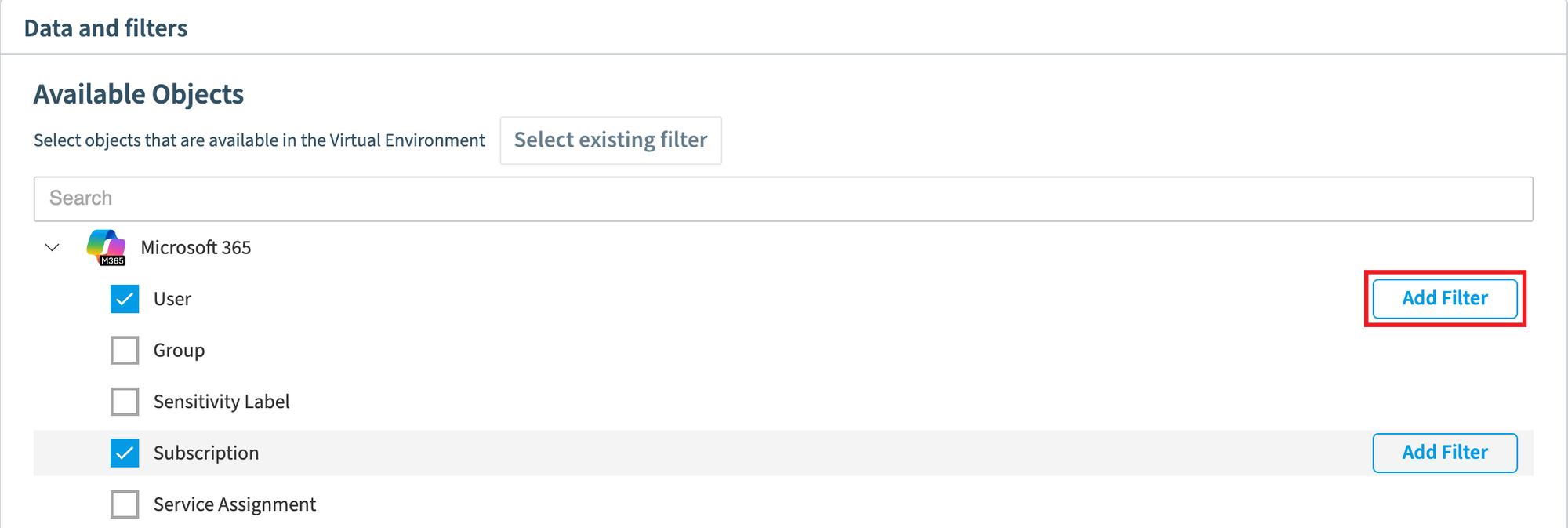
Go down the list and select the objects available in the Tenant Segmentation.
-
Click Add Filter next to each selected object.
-
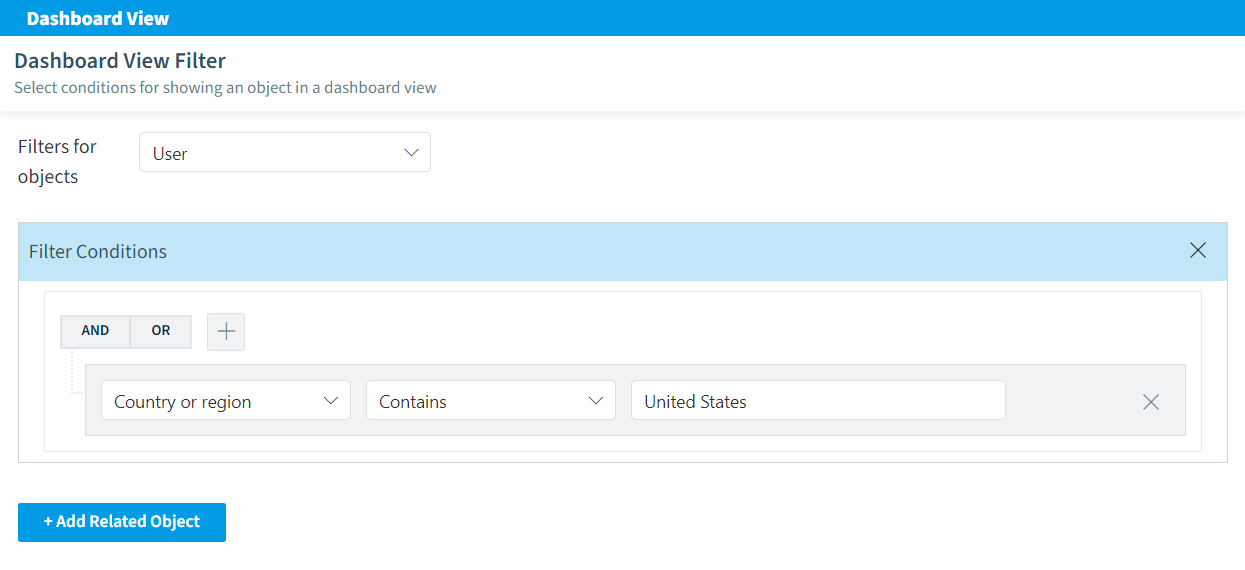
Enter the logic for the filter (e.g. All users that are based in the USA) and click Set filters at the bottom of the page.
-
Repeat this for all the selected objects, then click Next in the top right of the screen.
Dashboards
-
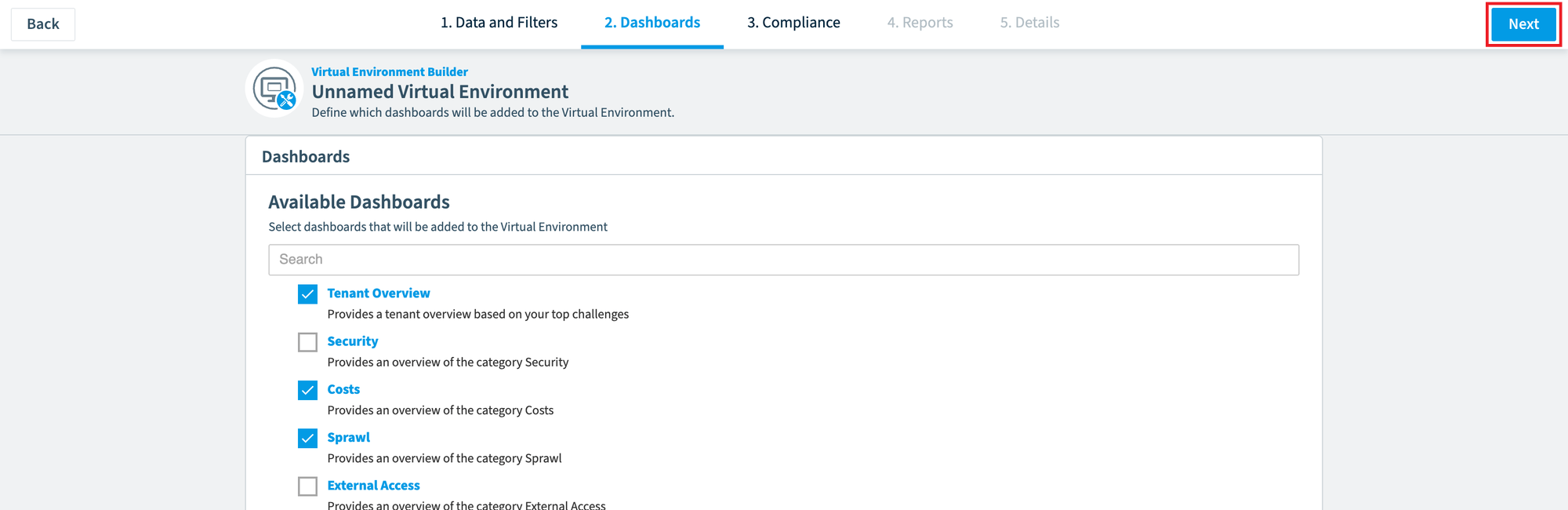
Select all the DashboardsDashboardA dashboard groups reports, policies and KPIs on one page as tiles, so each stakeholder sees the governance data that matters to them.Read more you want to add to the Tenant Segmentation.
-
Click Next in the top right of the screen.
Checks
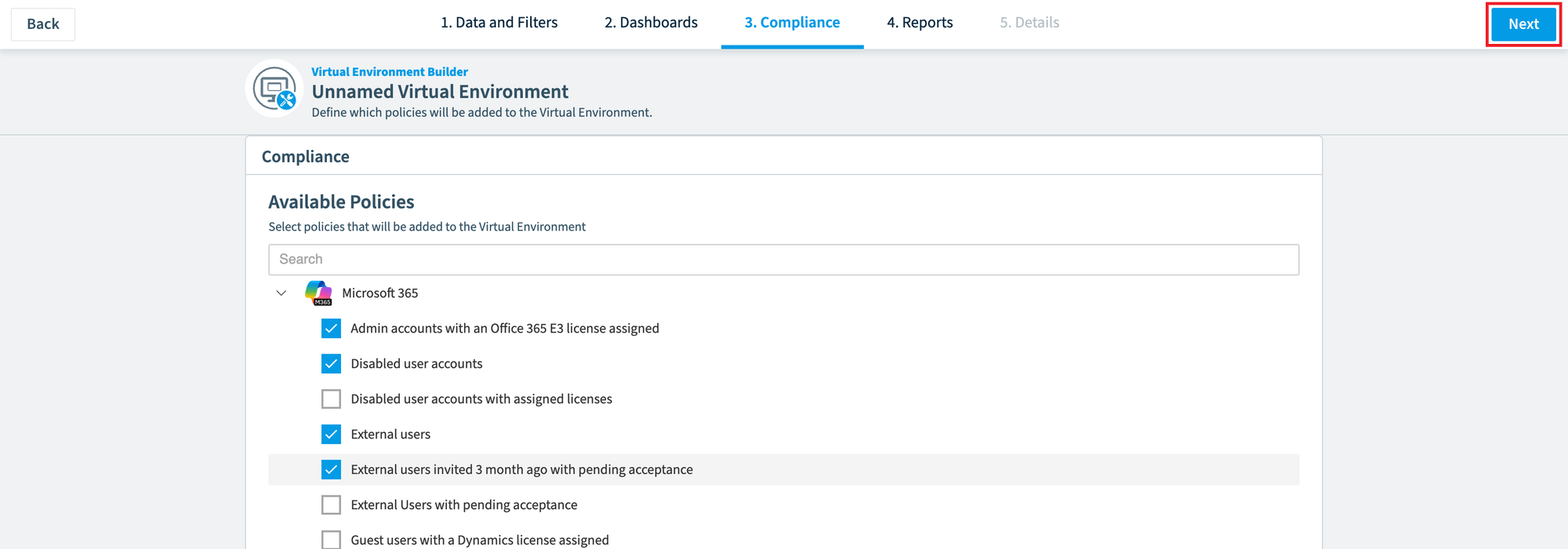
The checks available reflect the objects you selected in the Data and Filters stage.
-
Go down the list and select the Checks you want to add.
-
Click Next in the top right of the screen.
Reports
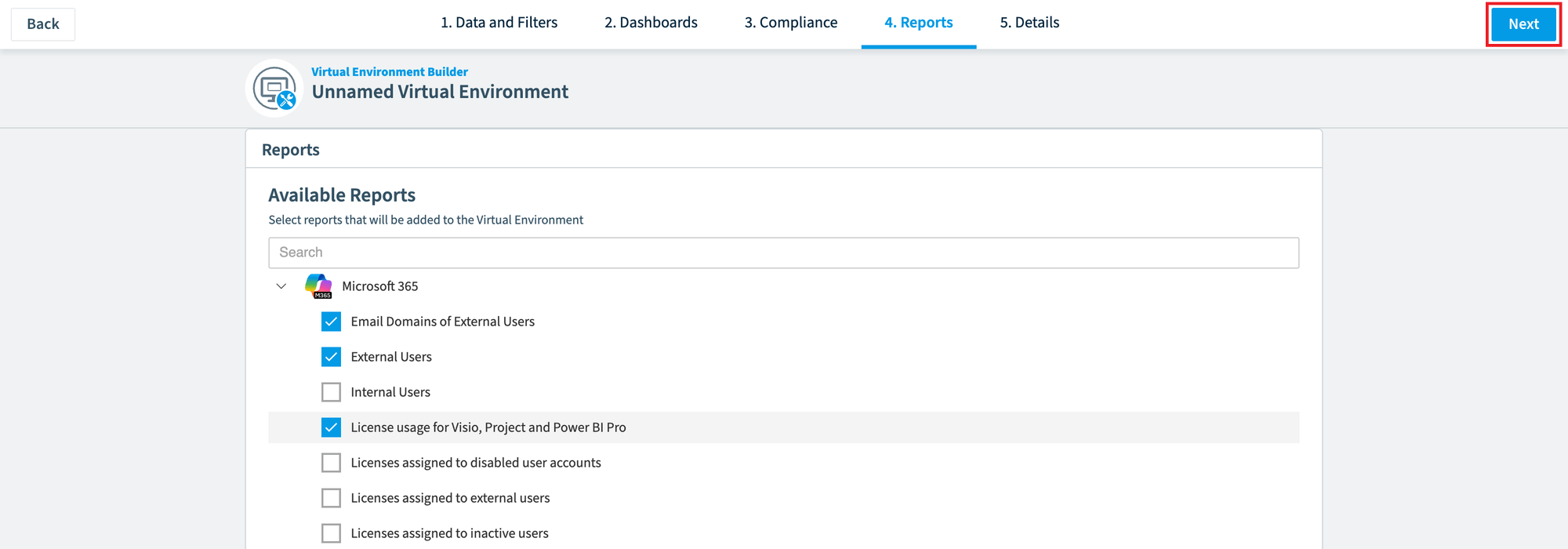
The reports available also reflect the objects you selected in the Data and Filters stage.
-
Go down the list and select the Reports you want to add.
-
Click Next in the top right of the screen.
Details
-
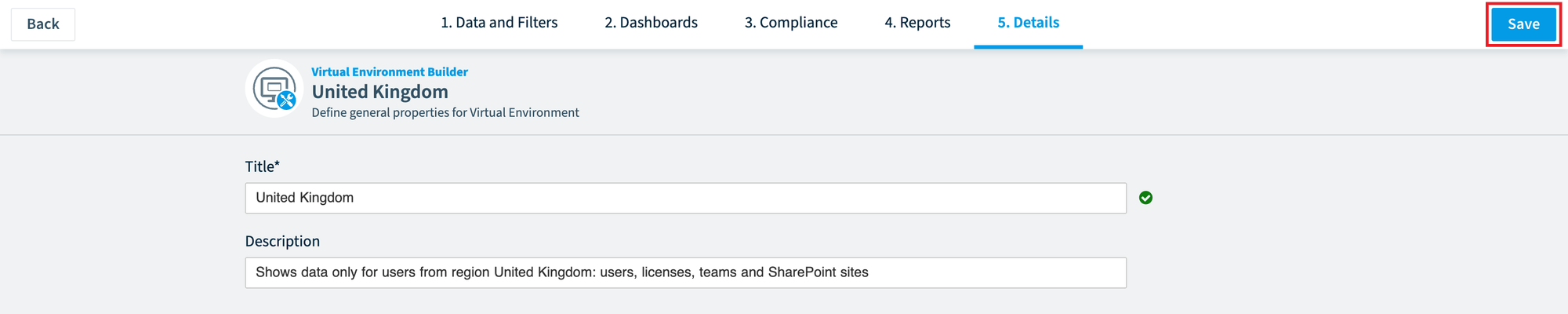
In Title, enter a name for the Tenant Segmentation (e.g. <Tenant> United States).
-
In Description, enter a description. It could include the filters used in the Data and Filters stage (e.g. Environment to show Users, Licenses, TeamsMicrosoft TeamsMicrosoft Teams is the Microsoft 365 app for chat, meetings and team collaboration.Read more, and SharePoint Sites whose owner and origin are the “United States”).
-
Click Save in the top right of the screen.
What you see
You return to Virtual Environments in the Environment Settings. The new Tenant Segmentation is in the list while it is being created.
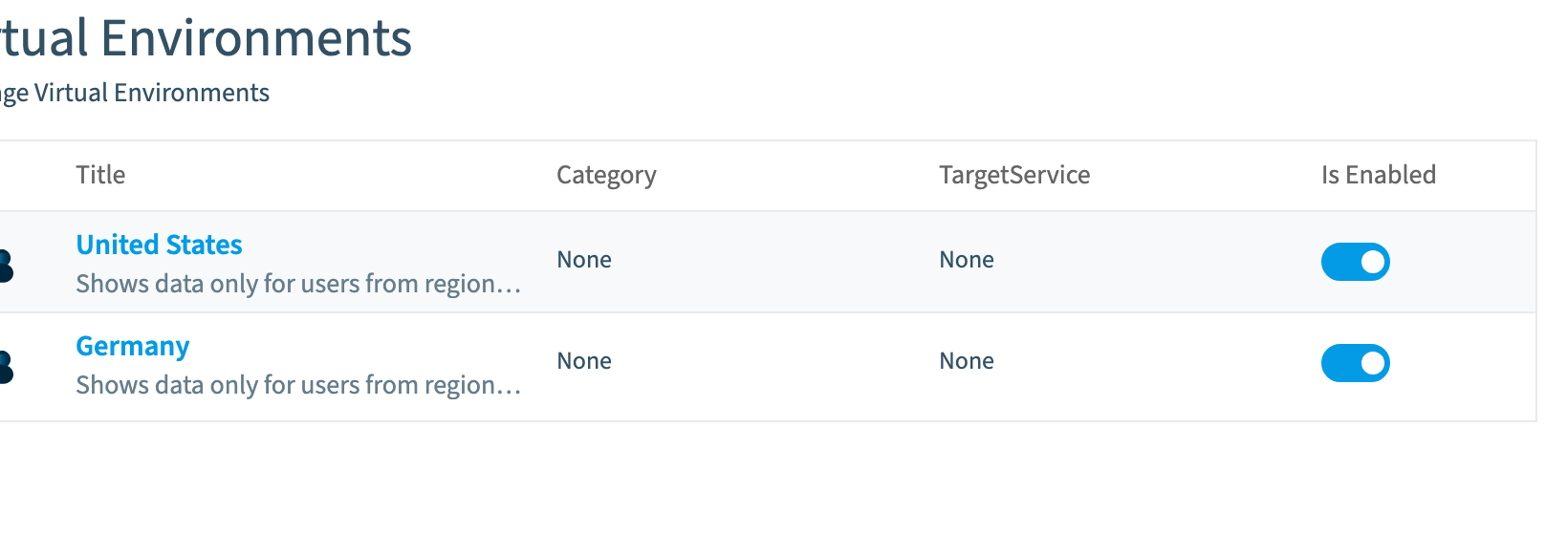
When the process is complete, you can open, modify, remove or deactivate the Tenant Segmentation from the Ellipses Menu next to it, or with its toggle.
Limits
- AutomationsAutomationAn automation is a workflow Rencore Governance runs on inventory objects when a trigger fires.Read more are currently not available in Tenant Segmentation.
- In a Virtual Environment, Search covers InventoryInventoryThe inventory is the record of every object Rencore Governance scans from your tenant, with their properties and the relations between them.Read more, Reports and Policies only.
Frequently asked questions
Which permission do I need to add a Virtual Environment?
Your role needs the Create Virtual Environment permission. The Admin, Contributor and Owner roles have it.
Where do I find the option to add a Virtual Environment?
Select the Environment in the Workspace & Environment Selector on the Nav Panel. Then go to Settings > Environment Settings > Virtual Environment and click Add Virtual Environment.
What stages does the Virtual Environment builder have?
The builder has five stages: Data and filters, Dashboards, Checks, Reports and Details. The available Checks and Reports depend on the objects you selected in the Data and filters stage.
What can I do with a Virtual Environment after it is created?
You can open, modify, remove or deactivate the Tenant Segmentation from the Ellipses Menu next to it, or with its toggle. It appears in the list while it is being created.
Are automations and full search available in a Virtual Environment?
No. Automations are currently not available in Tenant Segmentation. In a Virtual Environment, Search covers Inventory, Reports and Policies only.
Was this page helpful?
Thanks for the feedback.
Thanks. What was wrong?