Change the appearance of Rencore Governance
AI summary
Customize the appearance of your Workspace by changing the theme colors and logo, with a preview showing every change before you save. You can also toggle three features on or off: user onboarding emails, the chat icon for Rencore Support, and demo mode for presentations. You need the Edit Workspace permission to make these changes.
Change the branding of your Rencore Governance Workspace, such as its colors and logo, and turn a few WorkspaceWorkspaceA Workspace is the top-level container in Rencore Governance. It holds the settings, users, roles and connected apps for exactly one Environment, the connected Microsoft 365 tenant.Read more features on or off. A preview shows every change before you save.
Before you begin
- Your role needs the Edit Workspace permission, which the Admin and Owner roles have. See Rencore roles.
Steps
- Go to Settings > Workspace Settings > Appearance.
- Change the branding and features of the Workspace as described under “Branding” and “Features” below. Any change you make is displayed in the preview at the bottom of the page.
- Click Save at the top of the page.
Set a custom color
-
For Theme dark color or Theme accent color, select Custom. The last selected default palette is shown, and Choose color appears to the right.
-
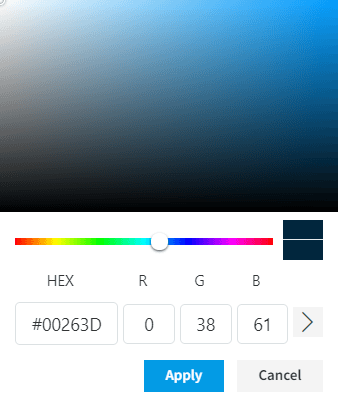
Click Choose color to load the color selector.
-
Use the slider and selection to choose your color, or enter the Hex or RGB values.
-
Click Apply. The new custom palette gradient is loaded.
Upload a custom logo
- For Logo, select Custom. The last selected logo is shown, and Upload image and Remove appear to the right.
- Click Upload image.
- In the file dialog, browse for the image or drag and drop it. The uploaded image is shown on the screen.
- Click Save at the top of the page.
Branding
There are three sections of branding that can be altered: Theme dark color, Theme accent color and Logo. Altering each section gives a completely different appearance to Rencore Governance.
Theme dark color
There are six possible choices for this section.
Rencore (dark blue) (Default) |  |
|---|---|
Neutral |  |
Aqua |  |
Clay |  |
Purple |  |
Custom |
Theme accent color
There are five possible choices for this section.
Rencore (bright blue) (Default) |  |
|---|---|
Aqua |  |
Clay |  |
Purple |  |
Custom |
Logo
There are three possible choices for this section.
Rencore Governance |  |
|---|---|
Generic governance logo |  |
Custom | See Upload a custom logo for more details |
Features
There are three features that can be toggled on and off.
Do not send user onboarding emails
Turn this on to stop Rencore Governance from sending onboarding emails to users. It is off by default, so onboarding emails are sent.
In Environment Settings, you can only turn this on for an EnvironmentEnvironmentAn Environment is the connected Microsoft 365 tenant inside a Workspace.Read more after it is turned on in Workspace Settings.
Chat icon
Turn this off to hide the chat with the Rencore Support Team. It is on by default.
Demo mode
When you turn on Demo ModeDemo environment and Demo ModeA demo environment is an Environment filled with demo data instead of tenant data.Read more, all banners to connect your tenant, expiring subscriptions, exceeding user threshold, and enabled preview features are hidden. This toggle is meant for presenting the product to other users without showing the distracting content.
Limits
- The logo area is a maximum of 240px x 40px. We strongly suggest a wide logo format, with no greater width than 800px, so it scales proportionately.
Frequently asked questions
Which permission do I need to change the appearance of my Workspace?
You need the Edit Workspace permission, which the Admin and Owner roles have.
Where do I change the colors and logo of Rencore Governance?
Go to Settings > Workspace Settings > Appearance. Change the branding and features, check the preview at the bottom of the page, and click Save at the top of the page.
How do I set a custom theme color?
For Theme dark color or Theme accent color, select Custom and click Choose color. Pick a color with the slider and selection, or enter Hex or RGB values, then click Apply.
What size can a custom logo be?
The logo area is a maximum of 240px x 40px. A wide logo format with no greater width than 800px is suggested, so it scales proportionately.
How do I stop Rencore Governance from sending onboarding emails to users?
Turn on Do not send user onboarding emails in the Appearance settings. It is off by default. In Environment Settings, you can only turn it on for an Environment after it is turned on in Workspace Settings.
Was this page helpful?
Thanks for the feedback.
Thanks. What was wrong?