Configure inventory objects
AI summary
Disable inventory objects, adjust scan intervals, or disable relations to focus your scans on the objects most critical to your governance. You need specific permissions to make these changes, and they affect your data and policies, so coordinate with your Customer Success Manager.
Switch off an inventory objectInventory objectAn inventory object is one item Rencore Governance has scanned from a connector, such as a single Team, SharePoint site collection, user or Power App.Read more or a relation in Rencore Governance, or change how often an object is updated by scans. Use it to focus scans on the objects that matter most to your governance.
Before you begin
- Your role needs the permission to turn inventory objects on and off to disable an object (Admin, Contributor and Owner roles), and the Edit scan intervalsScan intervalA scan interval is how often Rencore Governance aims to scan one object type, such as daily or weekly.Read more permission to change intervals (Admin and Owner roles). See Rencore roles.
- Making changes to any item in Configure Inventory Objects has an impact on the data in your EnvironmentEnvironmentAn Environment is the connected Microsoft 365 tenant inside a Workspace.Read more, and so on your reports, policies and automations. Ideally, only make changes here with the guidance of your Customer Success Manager.
Steps
-
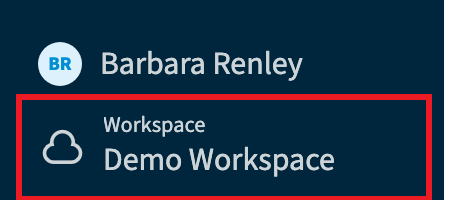
Select the Environment you want to configure in the Workspace & Environment selector.
-
Click InventoryInventoryThe inventory is the record of every object Rencore Governance scans from your tenant, with their properties and the relations between them.Read more.
-
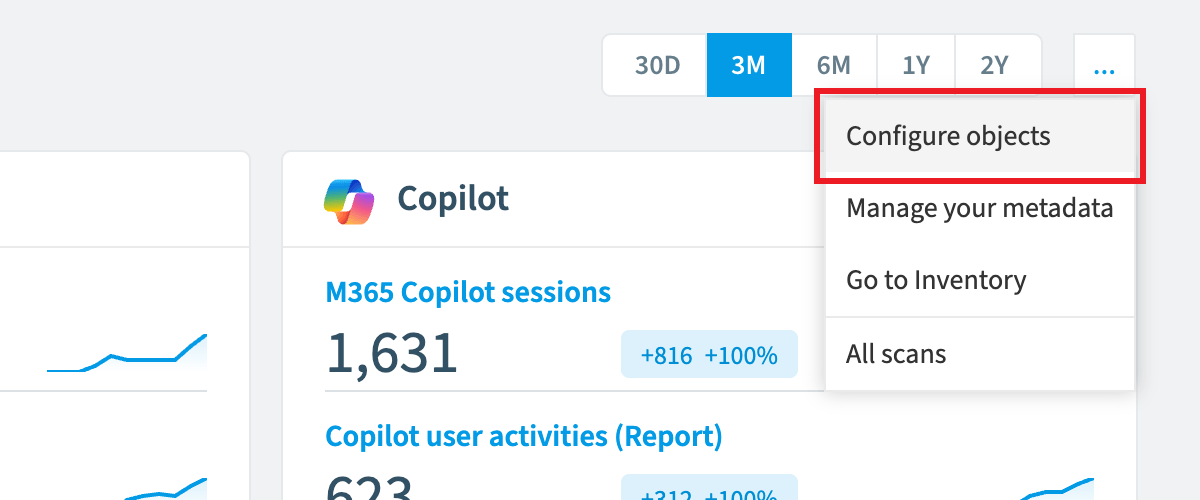
Click the ellipses menu ([…]).
-
Click Configure objects. The Inventory object configuration page opens.
-
Narrow down the objects using the search options at the top of the page.
-
Disable an object, update its scan intervals or disable its relations, as described below.
Disable an object
Disabling an object removes all its data from Rencore Governance.
-
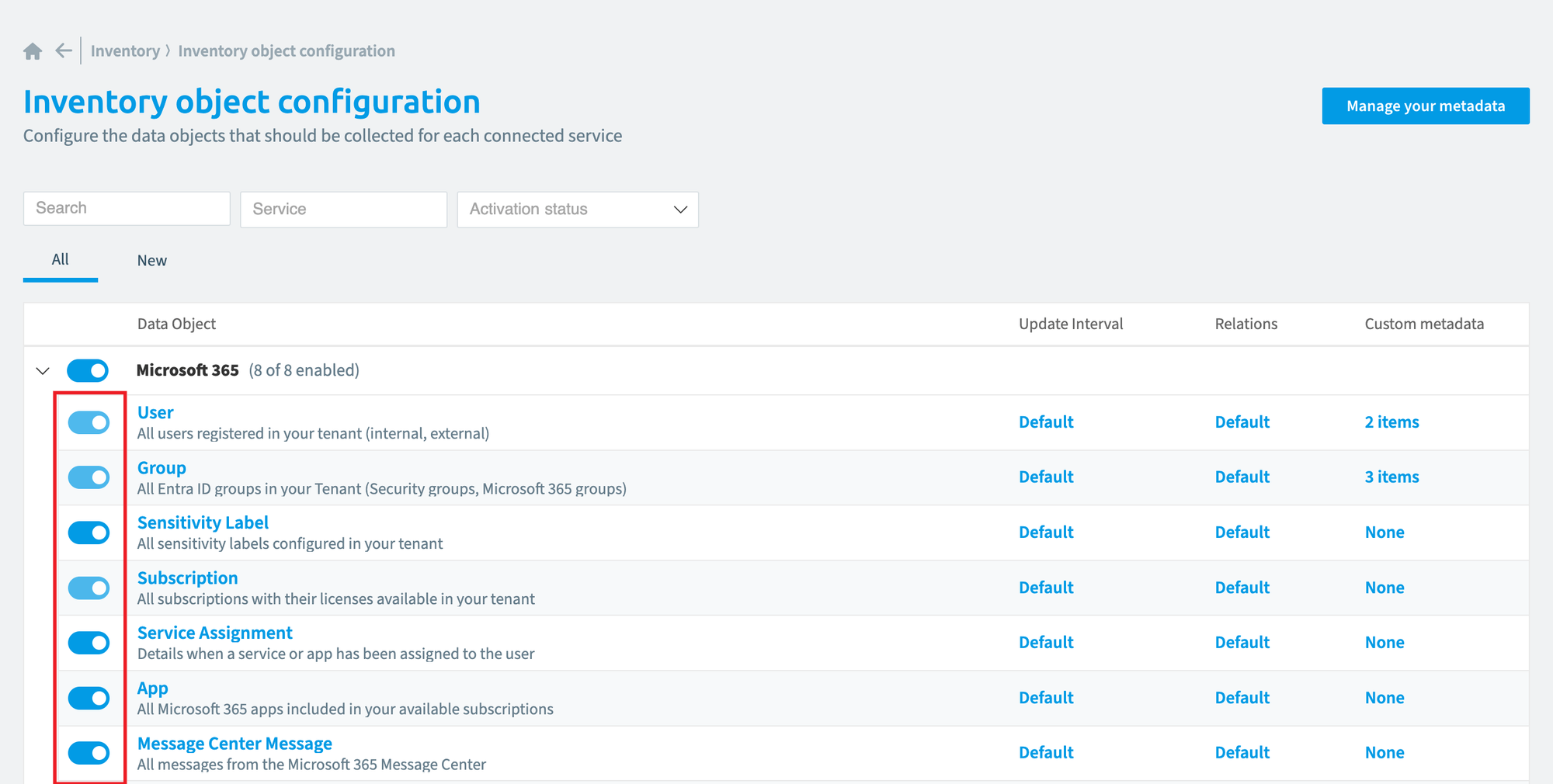
Click the toggle next to the object you want to disable.
-
A message asks, “Do you want to disable the data object <Data Object>? All data and related policies will be removed”. Click Disable data object.
Update scan intervals
-
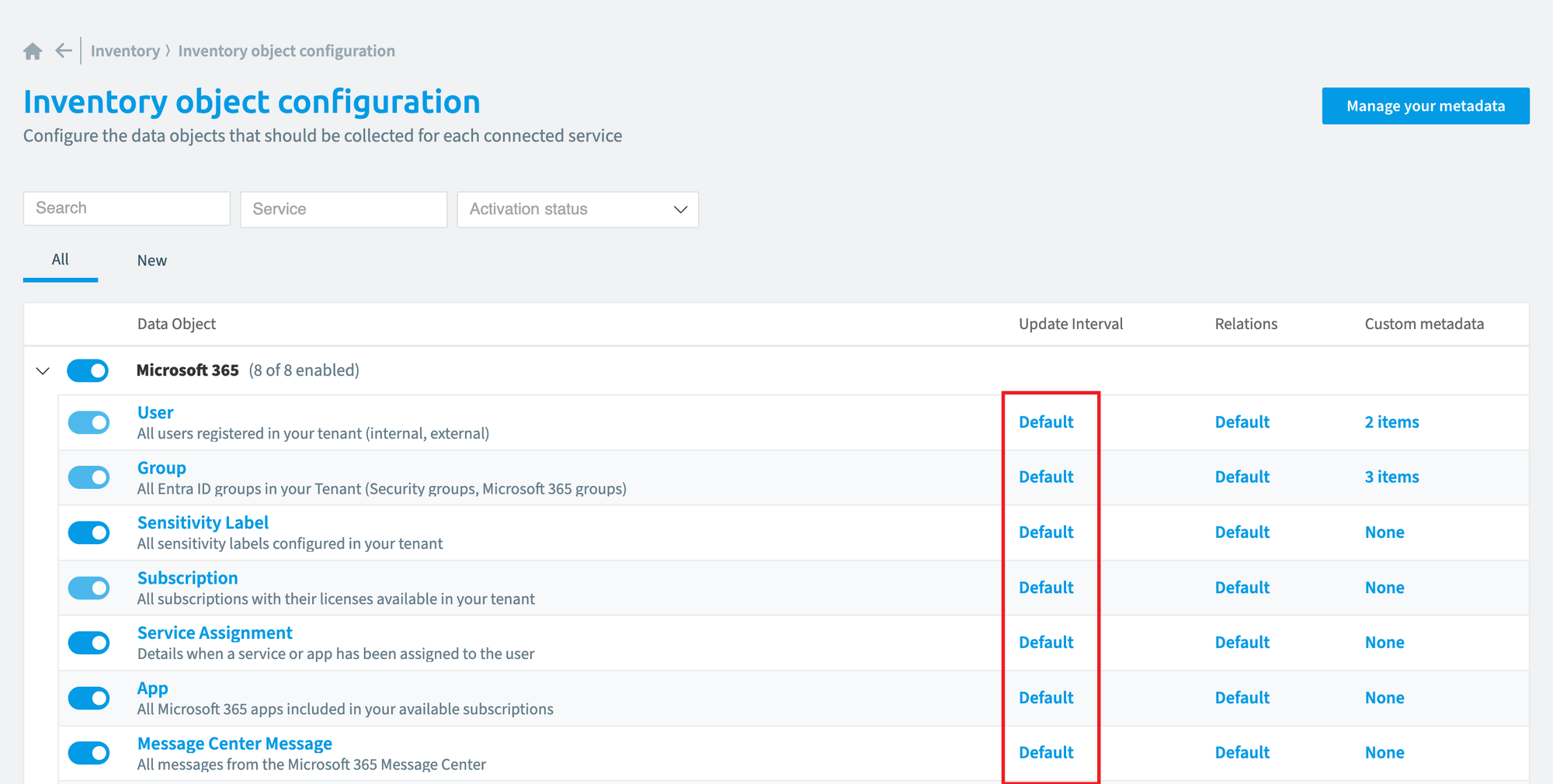
Next to the object, click the link in the Update Interval column. It shows Default or Customized.
-
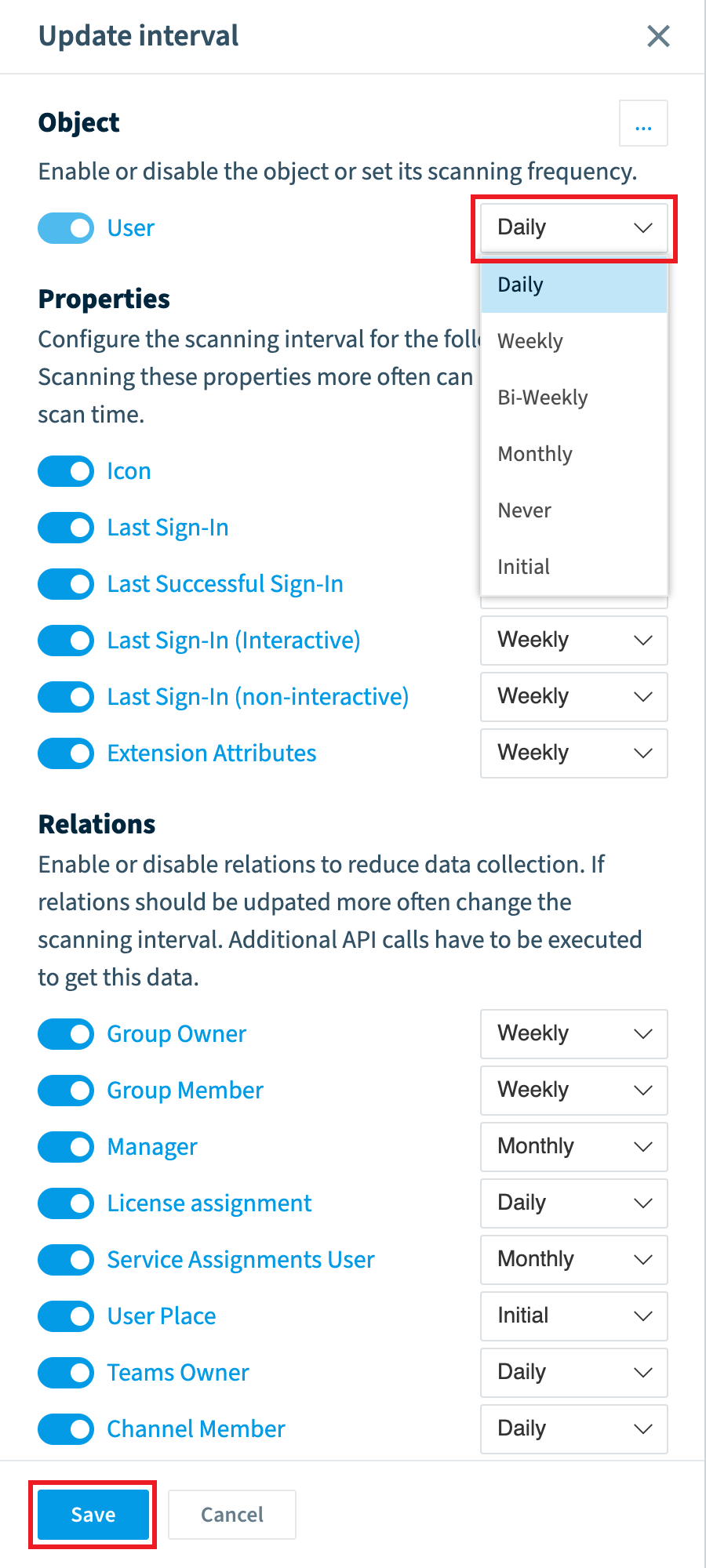
The Update interval pane has three sections: the object, Properties and RelationsRelationA relation links one inventory object to another, such as a Team to its owners, members and channels.Read more. To turn off scanning for an element, use the toggle on its left.
-
To change the interval, select a value in the dropdown on the right: Daily, Weekly, Bi-Weekly or Monthly. Some elements also offer “Never” or “Initial”. “Initial” collects the value once, in the first scan, and does not refresh it.
-
Click Save at the bottom of the screen.
Disable relations
Disabling relations that are not needed could improve the scan time for the object.
-
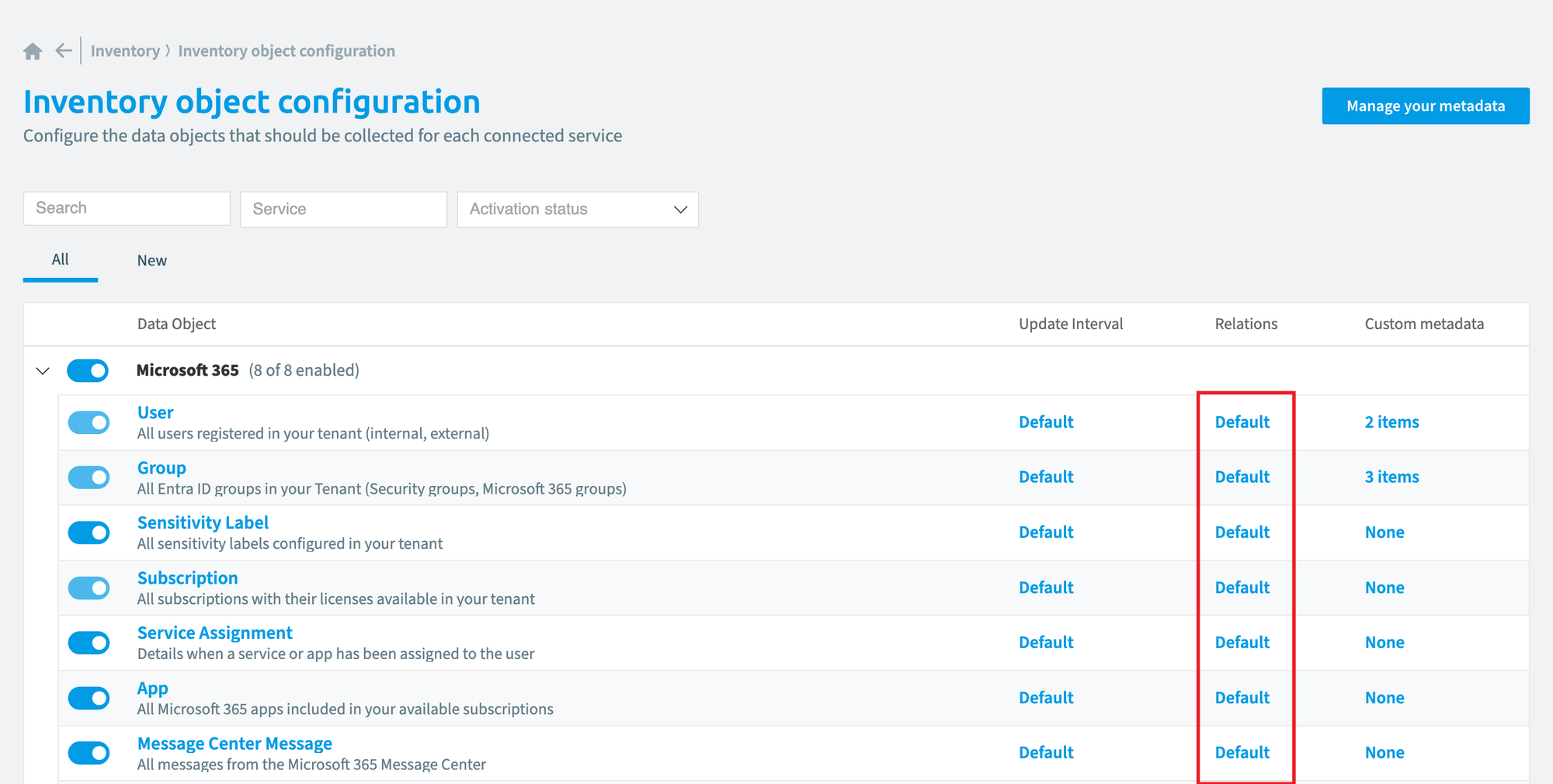
Next to the object, click the link in the far right column under Relations.
-
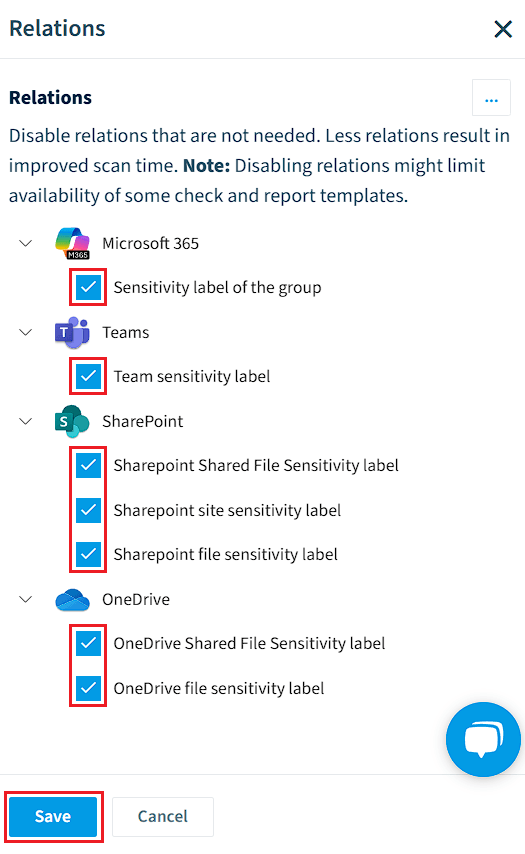
In the dialog, deselect the relations you want to disable.
-
Click Save.
Limits
- The scan interval is a target, not a guarantee: a scan can run later than planned, for example when Microsoft 365Microsoft 365Microsoft 365 is the Microsoft cloud suite of Teams, SharePoint, OneDrive, Exchange and the Office apps.Read more slows down requests.
Frequently asked questions
Which roles can disable an inventory object or change its scan interval?
Disabling an object needs the permission to turn inventory objects on and off (Admin, Contributor and Owner roles). Changing scan intervals needs the Edit scan intervals permission (Admin and Owner roles).
What happens to my data when I disable an inventory object?
Disabling an inventory object removes all its data from Rencore Governance. Related policies are removed as well. Changes here also affect your reports, policies and automations, so make them with guidance from your Customer Success Manager.
How do I change how often an inventory object is scanned?
Open Configure objects and click the link in the Update Interval column next to the object. In the Update interval pane, pick Daily, Weekly, Bi-Weekly or Monthly for each element, then click Save. Some elements also offer Never or Initial.
What does the initial scan interval mean?
Initial collects the value once, in the first scan, and does not refresh it afterward. Only some elements offer this option, along with Never.
Does the scan interval guarantee that a scan runs at an exact time?
No. The scan interval is a target, not a guarantee. A scan can run later than planned, for example when Microsoft 365 slows down requests.
Was this page helpful?
Thanks for the feedback.
Thanks. What was wrong?