Invite users to a Workspace
AI summary
Send an invitation to a colleague to join your Workspace and assign their role (Owner, Admin, Contributor, Reader, or Custom) and team access in one step. They receive an email with the invitation.
Invite a colleague to your WorkspaceWorkspaceA Workspace is the top-level container in Rencore Governance. It holds the settings, users, roles and connected apps for exactly one Environment, the connected Microsoft 365 tenant.Read more in Rencore Governance and choose their role and teams in the same step. They receive an email with the invitation.
Before you begin
- Only the Owner or an Admin of the Workspace can invite users. See Rencore roles.
- You need the email address of the user you want to invite.
Steps
-
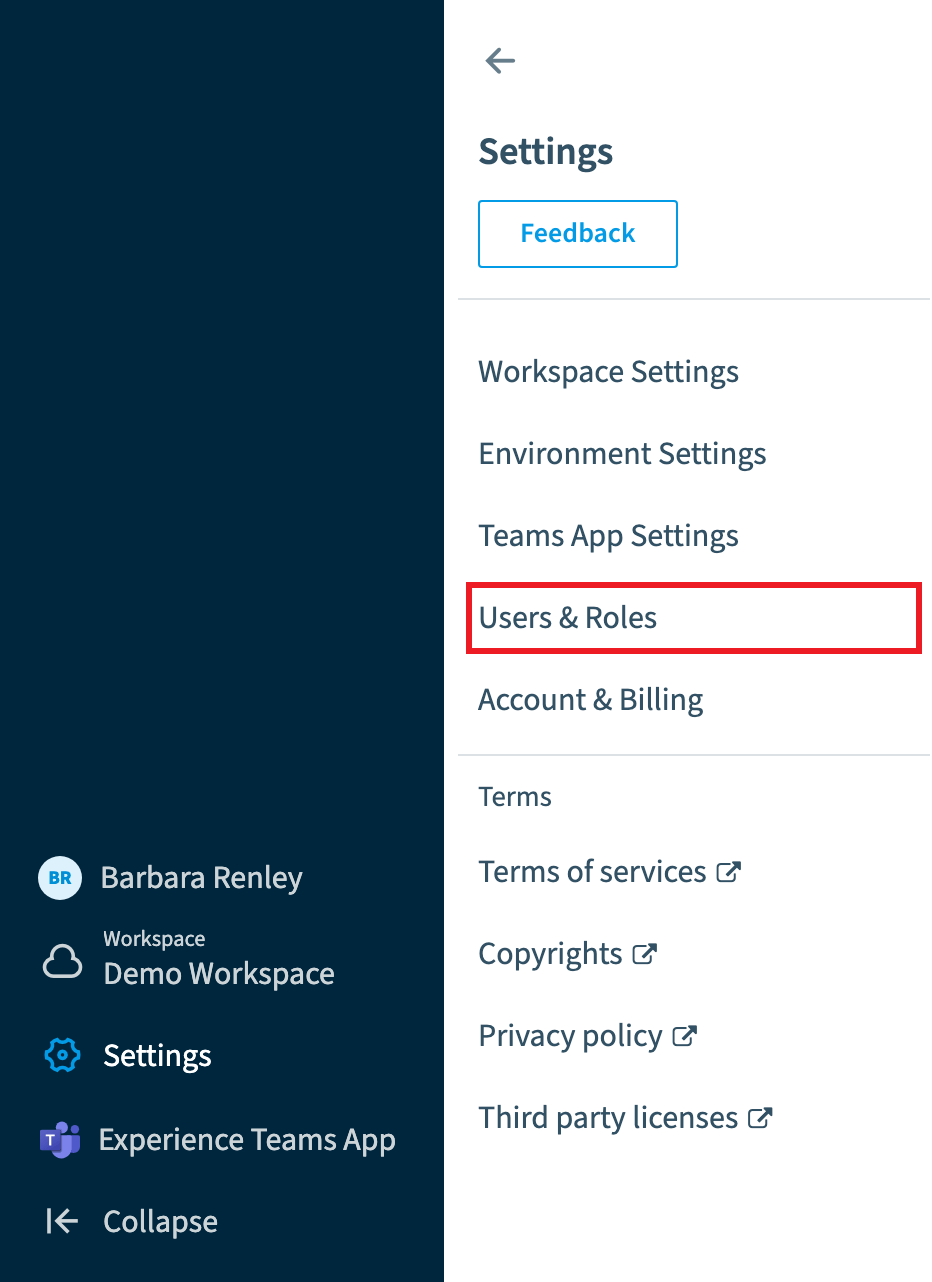
Go to Settings > Users & Roles.
-
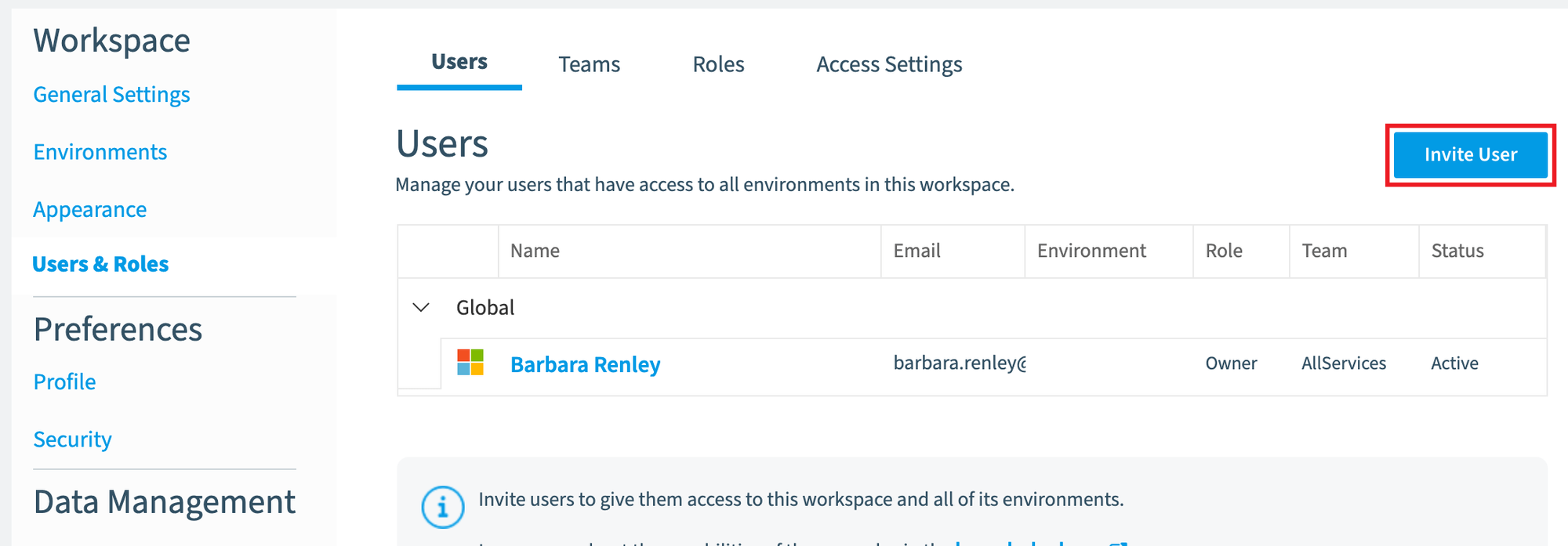
Click Invite User in the top-right corner.
-
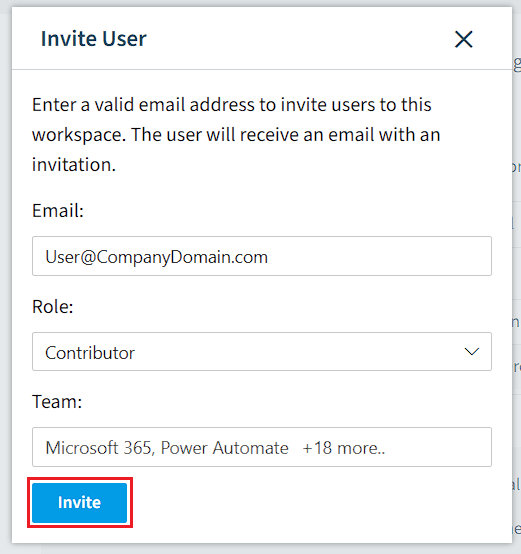
Enter the email of the user you want to invite.
-
Select the roleRoles and teamsRoles and teams control what each user can do and see in a Workspace. Each user is assigned a role, which grants permissions, and a team, which grants access to inventory objects.Read more of the user:
- Owner: a Workspace can have up to three Owners. The first Owner is the person who creates the Workspace.
- Admin: this user can administer the Workspace and add new users, like the Owner. However, an Admin cannot delete Workspaces nor change owners.
- Contributor: this user can work with data, creating dashboards, policies, inventories, etc.
- Reader: this user can only read the data granted to them.
- Custom roleCustom roleA custom role is a role you build yourself in Rencore Governance when no built-in role fits.Read more: a role that has been created by a Workspace Administrator or Owner.
-
Select the team or teams of the user. A team decides which inventory data the user can see. Rencore Governance has a built-in team for each connector, such as Microsoft 365, Entra ID, SharePoint, Teams or Viva Engage, and an All Services team for every connector. You can also pick a custom team.
-
Click Invite.
What you see
The user receives an email inviting them to the Workspace in Rencore Governance.
Frequently asked questions
Who can invite users to a Workspace in Rencore Governance?
Only the Owner or an Admin of the Workspace can invite users. You also need the email of the person you want to invite.
What is the difference between the admin and owner roles when inviting a user?
An Admin can administer the Workspace and add new users, like the Owner. However, an Admin cannot delete Workspaces or change owners. A Workspace can have up to three Owners.
How do I control which inventory data an invited user can see?
Select one or more teams for the user when you invite them. A team decides which inventory data the user can see. You can pick a built-in team for a connector, the All Services team, or a custom team.
Was this page helpful?
Thanks for the feedback.
Thanks. What was wrong?