Assign a user a role and team
AI summary
Configure a Rencore Governance user's role, like Admin or Reader, to control what they can do, and assign them to teams to specify which objects they can view. You complete both steps from Settings > Users & Roles after the user is invited to your Workspace.
Give a Rencore Governance user a role, such as Admin or Reader, and add them to one or more teams. The role sets what the user can do, and the team sets which objects they can see.
Before you begin
- Your role needs the Manage users permission, which the Admin and Owner roles have. See Rencore roles.
- The user is already invited to the WorkspaceWorkspaceA Workspace is the top-level container in Rencore Governance. It holds the settings, users, roles and connected apps for exactly one Environment, the connected Microsoft 365 tenant.Read more. See Invite users to a Workspace.
Steps
-
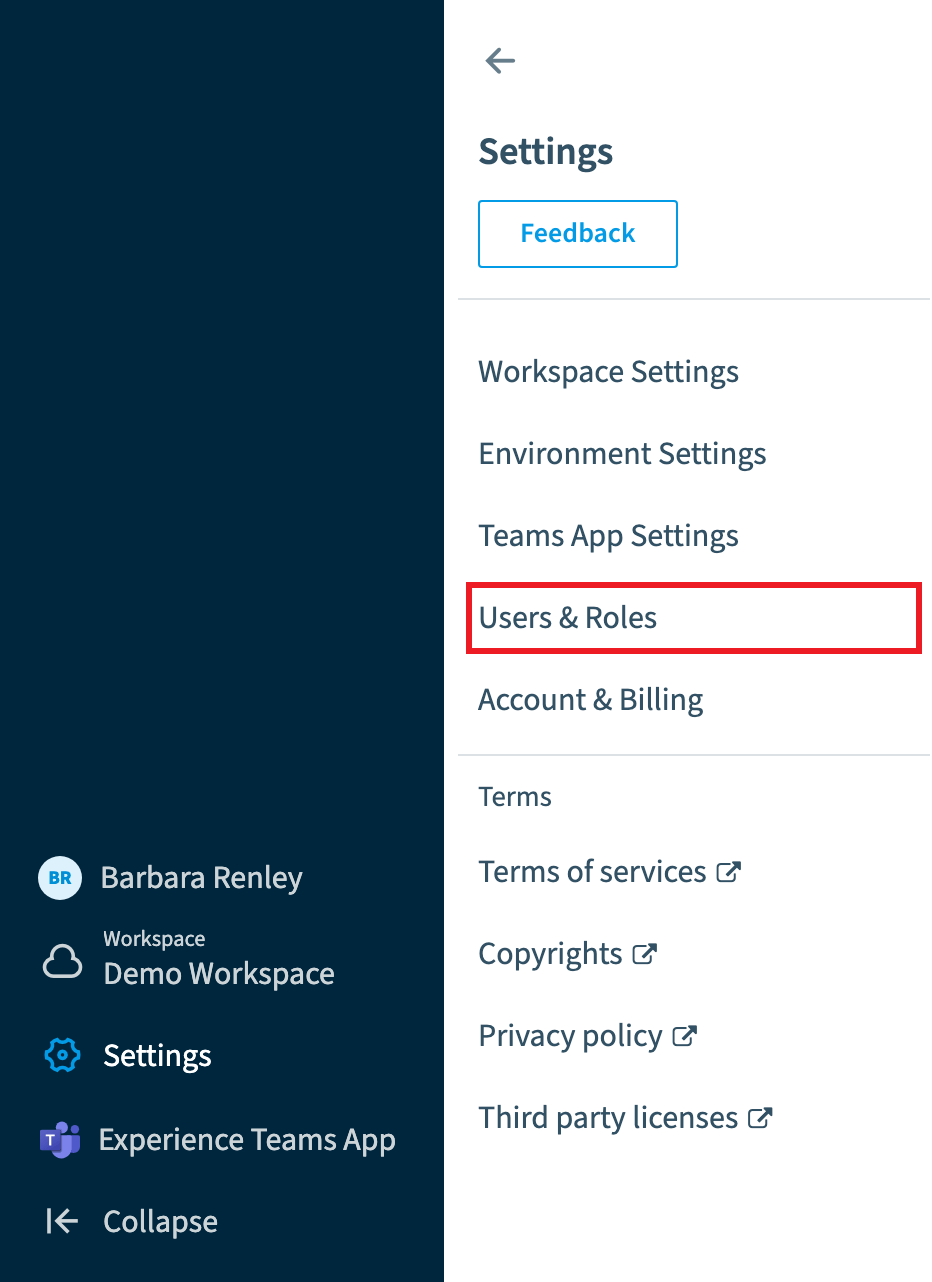
Go to Settings > Users & Roles.
Assign a role
-
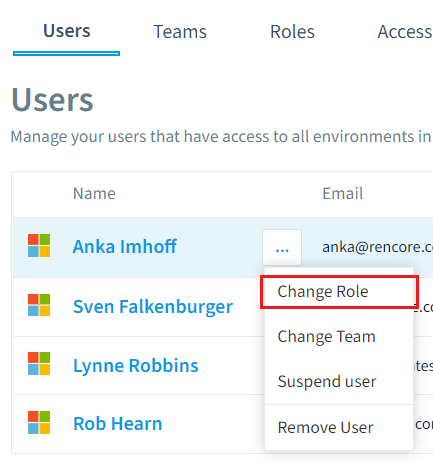
Click the Action menu ([…]) to the right of the user.
-
Select Change Role.
-
In the dialog, select the role: Owner, Admin, Contributor, Reader, or a custom role.
-
Click Change Role.
Assign a team
-
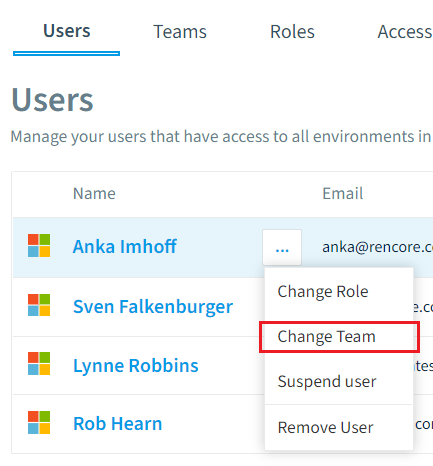
Click the Action menu to the right of the user.
-
Select Change Team.
-
In the dialog, select one or more teams: a built-in team such as All Services, Microsoft 365, Entra ID, SharePoint, Teams or Viva Engage, or a custom team.
-
Click Change Team.
Frequently asked questions
Which permission do I need to change a user's role or team in Rencore Governance?
You need the Manage users permission, which the Admin and Owner roles have. The user must also already be invited to the Workspace.
How do I change the role of a user in Rencore Governance?
Go to Settings > Users & Roles, click the Action menu ([…]) next to the user, and select Change Role. Choose Owner, Admin, Contributor, Reader, or a custom role, then click Change Role.
Can I add a user to more than one team, and which teams can I pick?
Yes. In the Change Team dialog you can select one or more teams. These can be built-in teams such as All Services, Microsoft 365, Entra ID, SharePoint, Teams or Viva Engage, or a custom team. The team sets which objects the user can see.
Was this page helpful?
Thanks for the feedback.
Thanks. What was wrong?