Create a Support Portal account
AI summary
Create a Rencore Support Portal account at support.rencore.com to raise and track support requests; it is separate from your Rencore Governance sign-in. Activate the account via email and set up your profile with title, phone numbers, and time zone.
Create a Rencore Support PortalSupport Portalcom is where you raise a support ticket with Rencore and follow its progress.Read more account so you can raise and track support requests. You sign up at support.rencore.com and activate the account from an email.
Before you begin
- A company email address. The Support Portal account is separate from your Rencore Governance sign-in and does not depend on your Rencore role. Try to avoid admin or dev accounts.
Steps
-
Go to support.rencore.com.
-
Click Sign up in the top-right navigation.
-
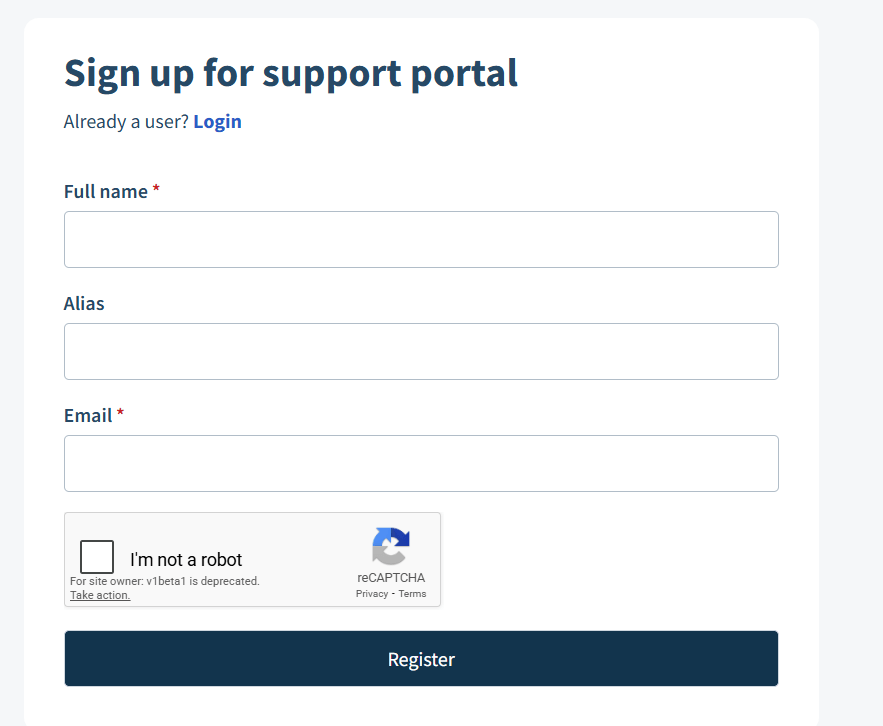
Enter your full name, an alias and your company email.
-
Select I’m not a robot and complete the reCAPTCHA.
-
Click Register. An activation link is sent to the email you entered.
-
Open the email (check the junk folder too) and click the link.
-
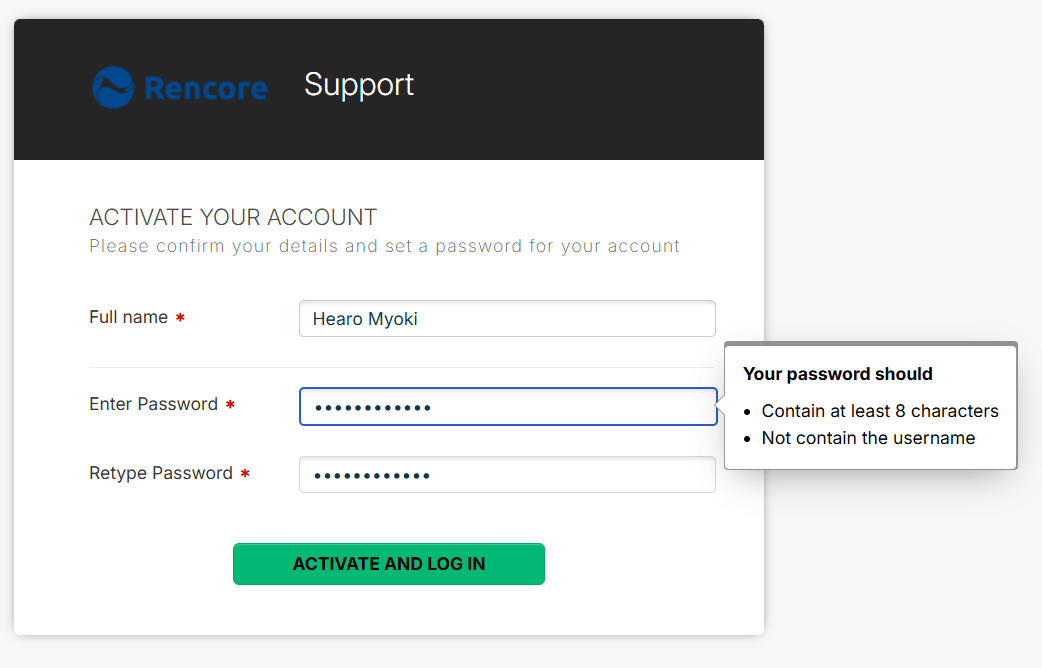
In the new browser window, create a password of at least 8 characters and enter it again.
-
Click ACTIVATE AND LOG IN.
-
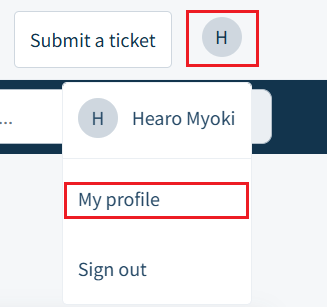
Go to Profile > MY profile.
-
Set your title, add a photo and phone numbers, and set your Time Zone (this helps the support team when it arranges remote sessions).
-
Click Save.
Frequently asked questions
Do I need my Rencore Governance sign-in to create a Support Portal account?
No. The Support Portal account is separate from your Rencore Governance sign-in and does not depend on your Rencore role. You only need a company email, and you should try to avoid admin or dev accounts.
How do I activate my new Support Portal account?
After you click Register, an activation link is sent to the email you entered. Open the email (check the junk folder too), click the link, create a password of at least 8 characters, enter it again, and click ACTIVATE AND LOG IN.
Why should I set a time zone in my Support Portal profile?
Setting your Time Zone helps the support team when it arranges remote sessions. You set it under Profile > MY profile, where you can also add your title, a photo and phone numbers. Click Save when you are done.
Was this page helpful?
Thanks for the feedback.
Thanks. What was wrong?