Manage workspaces
AI summary
As a workspace owner, add or remove owners and members, and remove visitors, site access, or file access using the Rencore Teams App. You can undo changes before saving.
Add or remove owners and members, and remove visitors, site access and file access, directly in the Rencore Teams AppRencore Teams AppThe Rencore Teams App (formerly Rencore Nova) brings Rencore Governance into Microsoft Teams for the people who own and use workspaces.Read more. Use this as a workspace ownerWorkspace ownerA workspace owner is an owner of a Microsoft 365 workspace, such as a Team, a SharePoint site or a group.Read more to keep access to your workspace up to date.
Before you begin
- You own the workspace (the owner role in Microsoft 365Microsoft 365Microsoft 365 is the Microsoft cloud suite of Teams, SharePoint, OneDrive, Exchange and the Office apps.Read more).
- Management is turned on for this workspace type. The steps are in Enable services for Teams App workspaces.
Steps
-
Open the workspace you own from Workspaces in the Rencore Teams App.
-
Make your changes with one of the paths below.
-
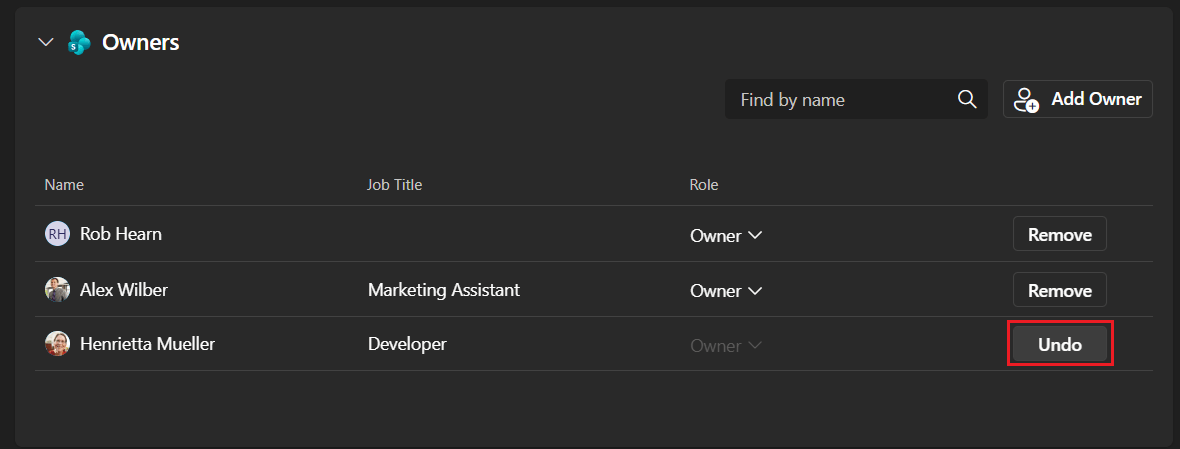
To revert a specific change before saving, click Undo next to it. This restores the setting to its previous state.
-
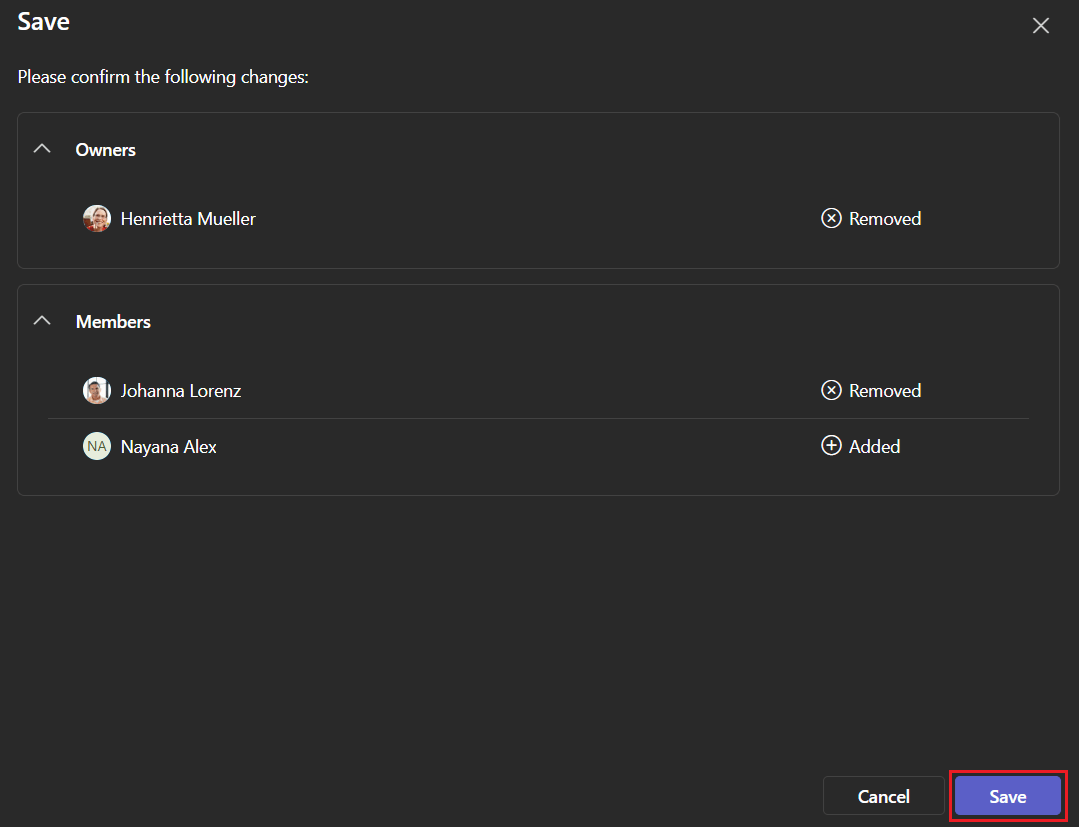
Click Save. A dialog summarizes the changes to the workspace.
-
Click Save in the dialog to apply the changes.
Add an owner or member
-
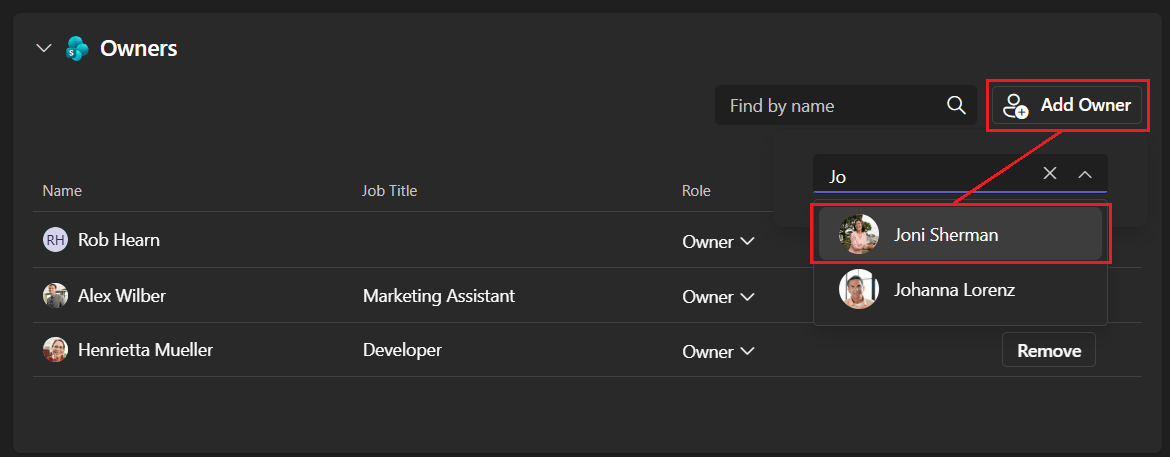
Click Add Owner or Add Member.
-
Type the name of the user you want to add.
-
Click the user.
Remove an owner or member
-
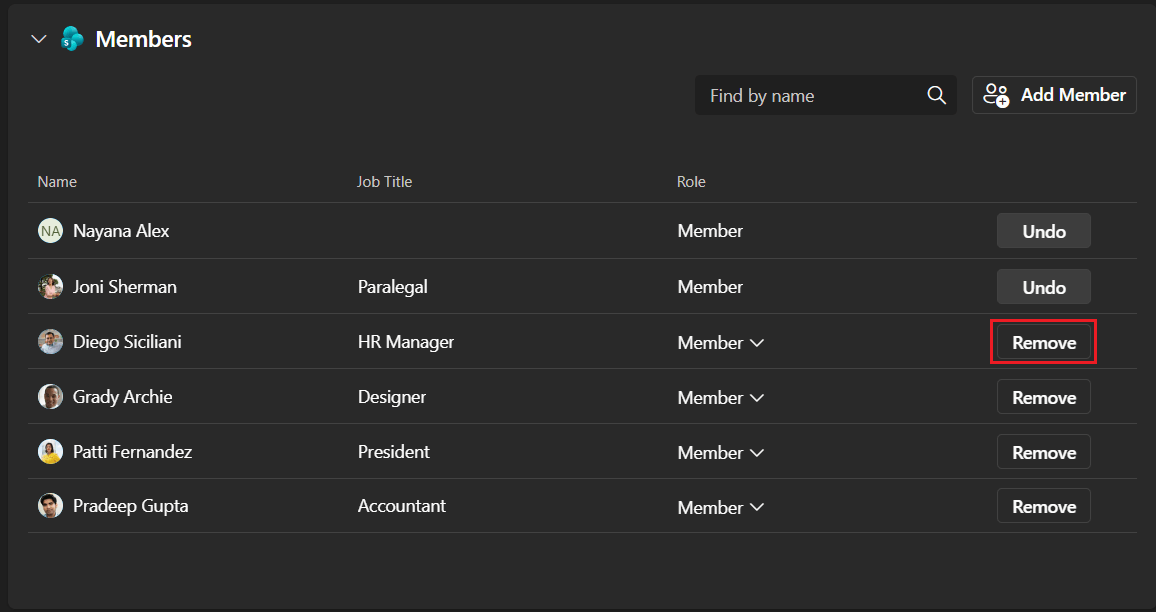
Click Remove next to the owner or member to be removed.
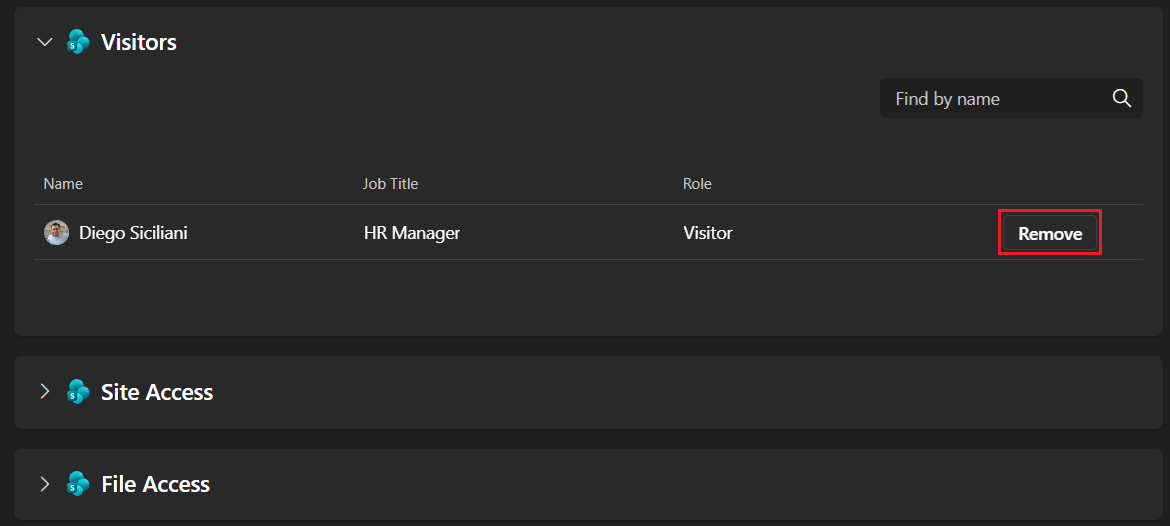
Remove visitors, site access or file access
-
Click Remove next to the user you want to remove.
Limits
- An owner of a workspace can only remove visitors, site access and file access. They cannot add them.
Frequently asked questions
Can a workspace owner add visitors or grant site access in the Rencore Teams App?
No. An owner of a workspace can only remove visitors, site access and file access. They cannot add them.
How do I add an owner or member to a workspace I own?
Open the workspace from Workspaces in the Rencore Teams App and click Add Owner or Add Member. Type the name of the user, click the user, then click Save and confirm by clicking Save in the dialog.
How can I revert a change to a workspace before saving it?
Click Undo next to the change. This restores the setting to its previous state. After that, you can continue with your other changes and click Save.
Was this page helpful?
Thanks for the feedback.
Thanks. What was wrong?