How do I find the number of users licensed for Rencore Governance?
You can see the number of users licensed to Rencore Governance directly in Rencore Governance. To count them outside of Rencore Governance, with a PowerShell script or a Graph APIMicrosoft GraphMicrosoft Graph is the Microsoft API that gives access to the data of the Microsoft 365 services.Read more call, see What does Rencore consider a Microsoft 365 user?.
Rencore Governance
To show the number of users licensed to a Rencore Governance Environment, you will need to:
-
Select the desired EnvironmentEnvironmentAn Environment is the connected Microsoft 365 tenant inside a Workspace.Read more via the Workspace & Environment Selector.
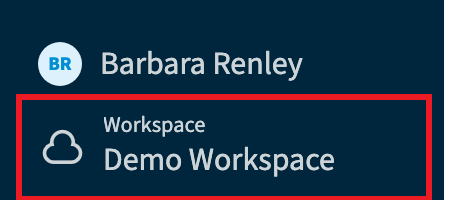
-
Go to Settings > Environment Settings > Subscription.
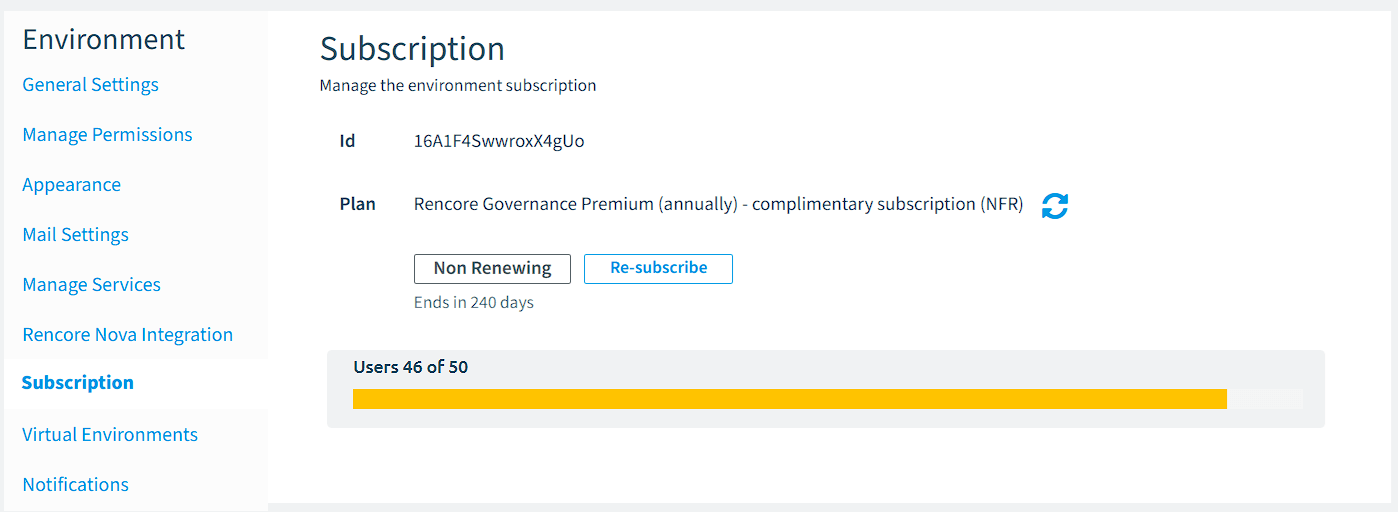
The following details are displayed:
- The subscription ID.
- The name of the plan.
- The subscription status, for example when it renews or ends.
- Below, the number of licensed usersLicensed userA licensed user is a user of the connected tenant that counts toward your Rencore Governance Subscription.Read more, shown as “Users x of y”.
You can also see the count in the list of Environments: go to Settings > Workspace Settings > Environments. The Users column shows the licensed users of each Environment. To see who they are, open the ellipses menu ([…]) of the Environment and select Show licensed users.
Was this page helpful?
Thanks for the feedback.
Thanks. What was wrong?