Request provision of a team
AI summary
Create a new team from a provisioning template in Rencore Nova through a four-step process: basic settings, security, channels, and apps. Rencore Nova is deprecated and will be shut down on 31 December 2026; you should migrate to Rencore Teams App before then. You will need the Rencore Nova Team App turned on for your users and an available provisioning template.
Request a new Team from a Provisioning TemplateProvisioning templateA provisioning template defines how a new Microsoft 365 workspace is created through Rencore Governance.Read more in Rencore NovaRencore NovaRencore Nova is a deprecated end-user app, replaced by the Rencore Teams App, that shuts down on 31 December 2026.Read more. The request has four steps: basic settings, security, channels and apps.
Before you begin
- A Workspace Owner has turned on Rencore Nova Team App enabled for all users of connected Microsoft 365 tenantMicrosoft 365 tenantA Microsoft 365 tenant is the dedicated instance of Microsoft 365 that holds an organization's users, groups, data and settings.Read more. See Integrate Rencore Nova.
- A Provisioning Template is available to you in Rencore Nova.
Steps
-
Click on Workspaces on the Navbar.
-
Click on Request Workspace.
-
Highlight the desired template and click Use Template.
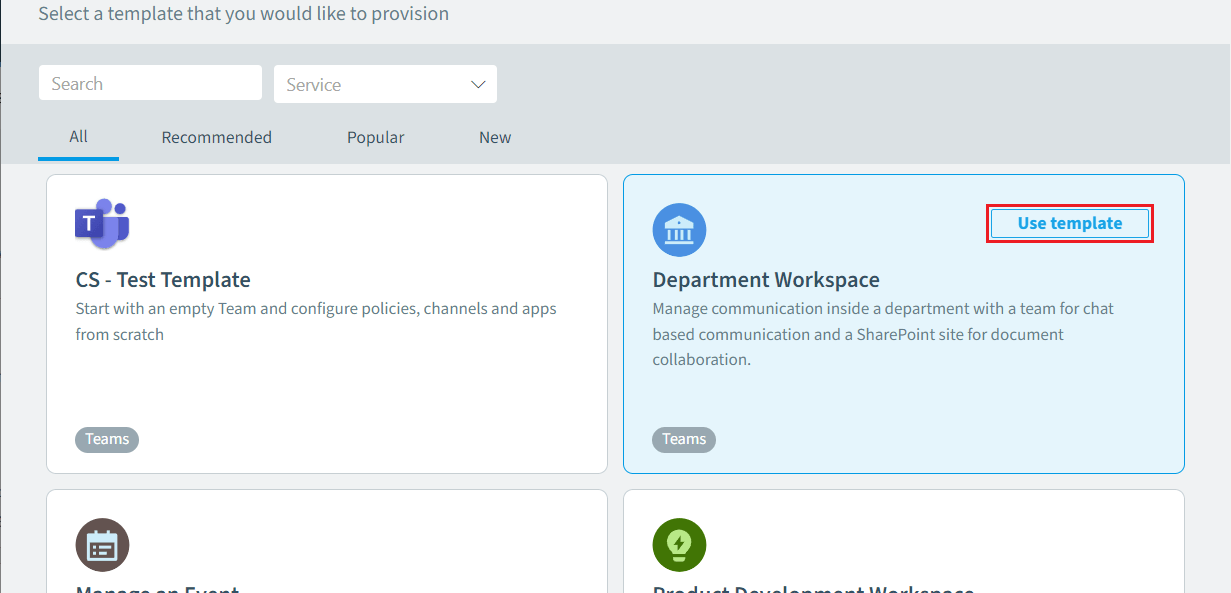
-
On Basic Settings, enter a meaningful Team Name and a Team Description of the Team and its purpose. To customize the default group that will be generated for the team, enter a Group Name.
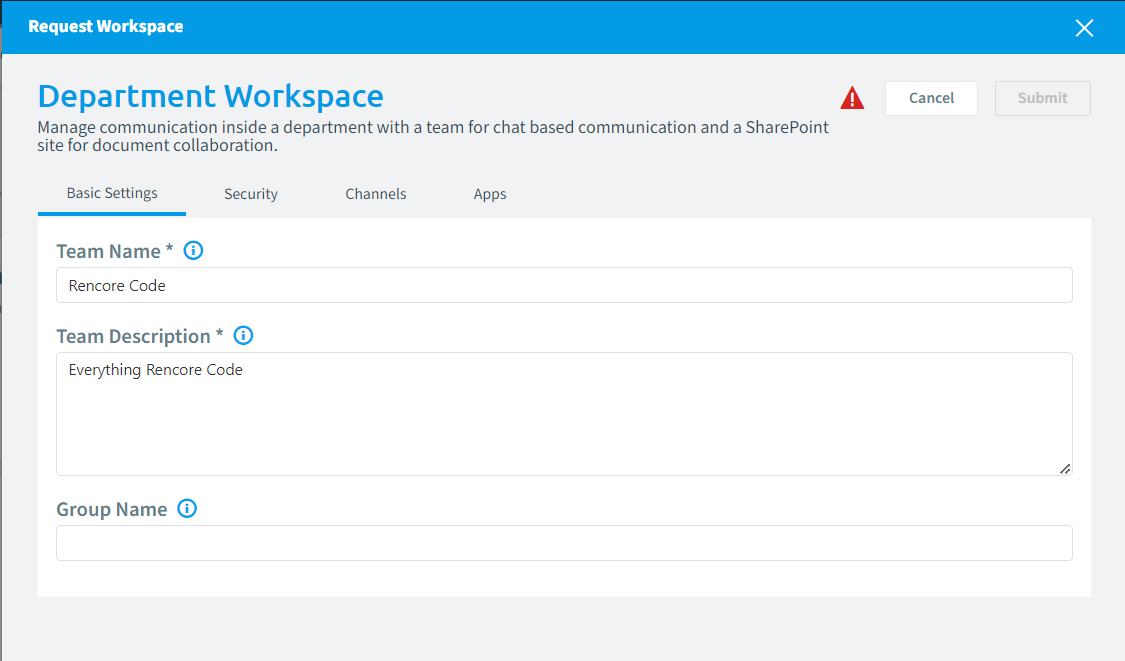
-
On Security, select whether the Team is Private or Public (if the Provisioning Template permits it), and enter the M365Microsoft 365Microsoft 365 is the Microsoft cloud suite of Teams, SharePoint, OneDrive, Exchange and the Office apps.Read more users who will be the Owners and the Members of the Team.
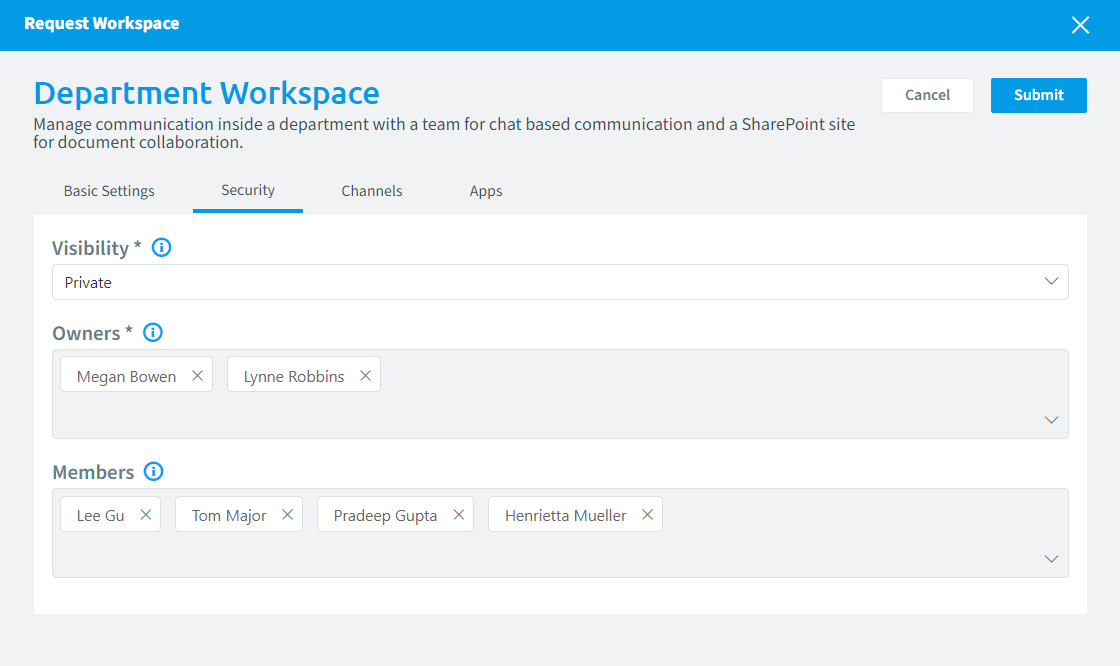
-
On ChannelsChannelA channel is a section inside a Microsoft Teams team where members hold conversations and share files on one topic.Read more, select the channels the Team will have when created (if the Provisioning Template permits the user to change the channels). To add a channel, click on the box and enter a Suggest Teams Channels. To remove a channel, click the “X” next to it.
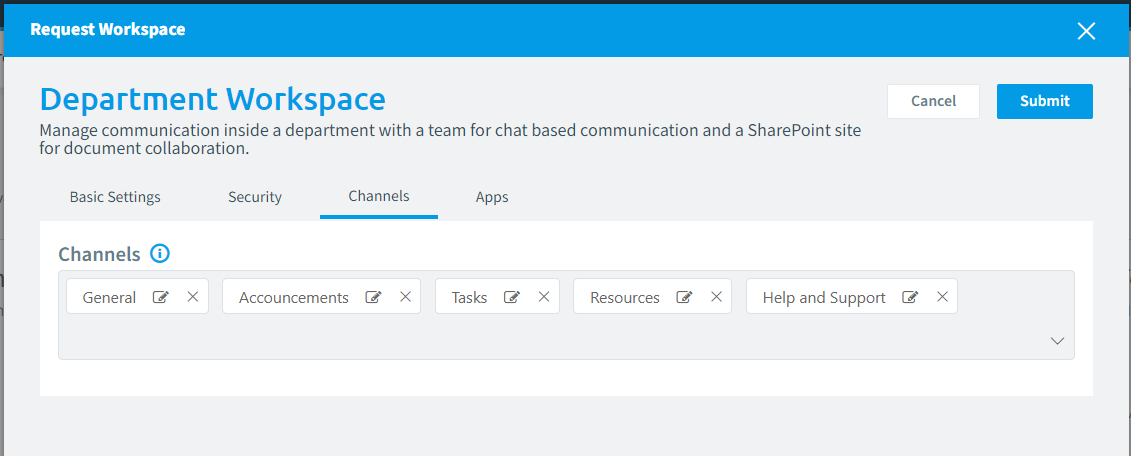
-
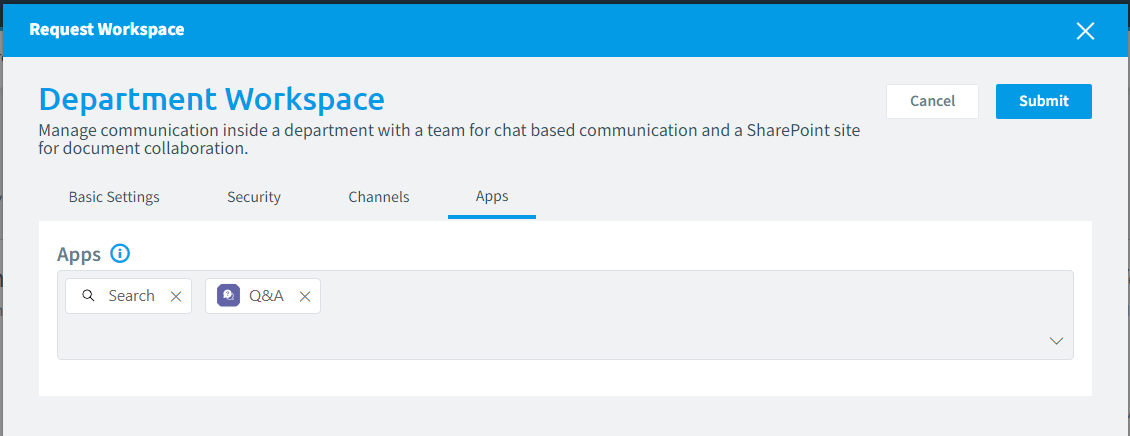
On Apps, select the apps that will be installed in the Team when created (if the Provisioning Template permits the user to change the channels). To add an app, click on the box and enter an app name. To remove an app, click the “X” next to it.
-
Click Submit in the top right of the screen.
What you see
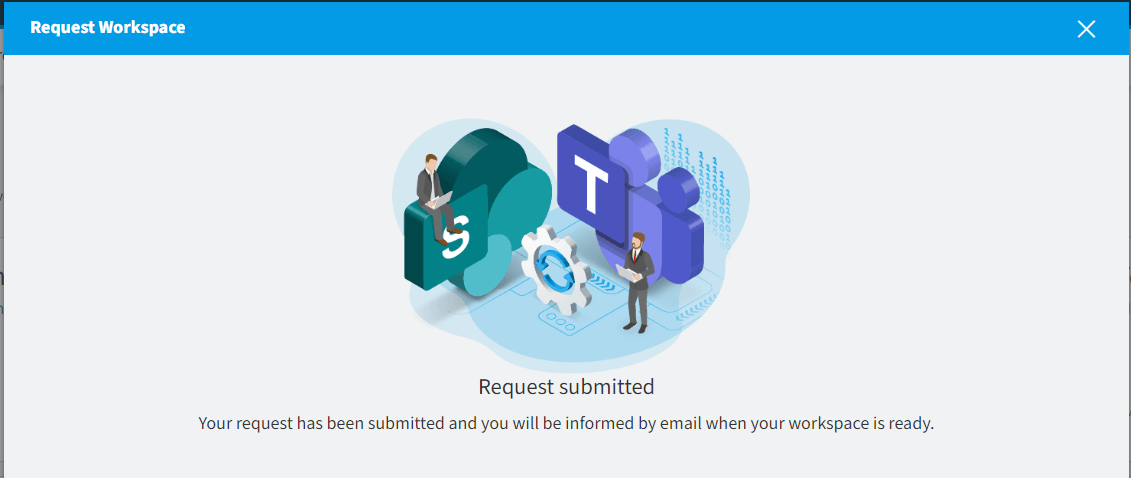
A prompt confirms “Your request has been submitted and you will be informed by email when your workspace is ready”.
Frequently asked questions
What are the steps to request a new team from a provisioning template in Rencore Nova?
Click Workspaces on the Navbar, click Request Workspace, highlight a template and click Use Template. Then complete Basic Settings, Security, Channels and Apps, and click Submit in the top right of the screen.
What must be in place before I can request a team in Rencore Nova?
A Workspace Owner must have turned on Rencore Nova Team App enabled for all users of the connected Microsoft 365 tenant. A Provisioning Template must also be available to you in Rencore Nova.
Can I choose whether a team is private or public when I request it?
Yes, if the Provisioning Template permits it. On the Security step you select Private or Public and enter the M365 users who will be the Owners and the Members of the Team.
How do I add or remove channels and apps when requesting a team?
On the Channels or Apps step, click the box and enter a channel suggestion or an app name to add it. Click the "X" next to an item to remove it. This works only if the Provisioning Template permits changes.
What happens after I submit a team request in Rencore Nova?
A prompt confirms that your request has been submitted. You will be informed by email when your workspace is ready.
Was this page helpful?
Thanks for the feedback.
Thanks. What was wrong?