 SharePoint: invalid storage metrics collected for SharePoint list
AI summary
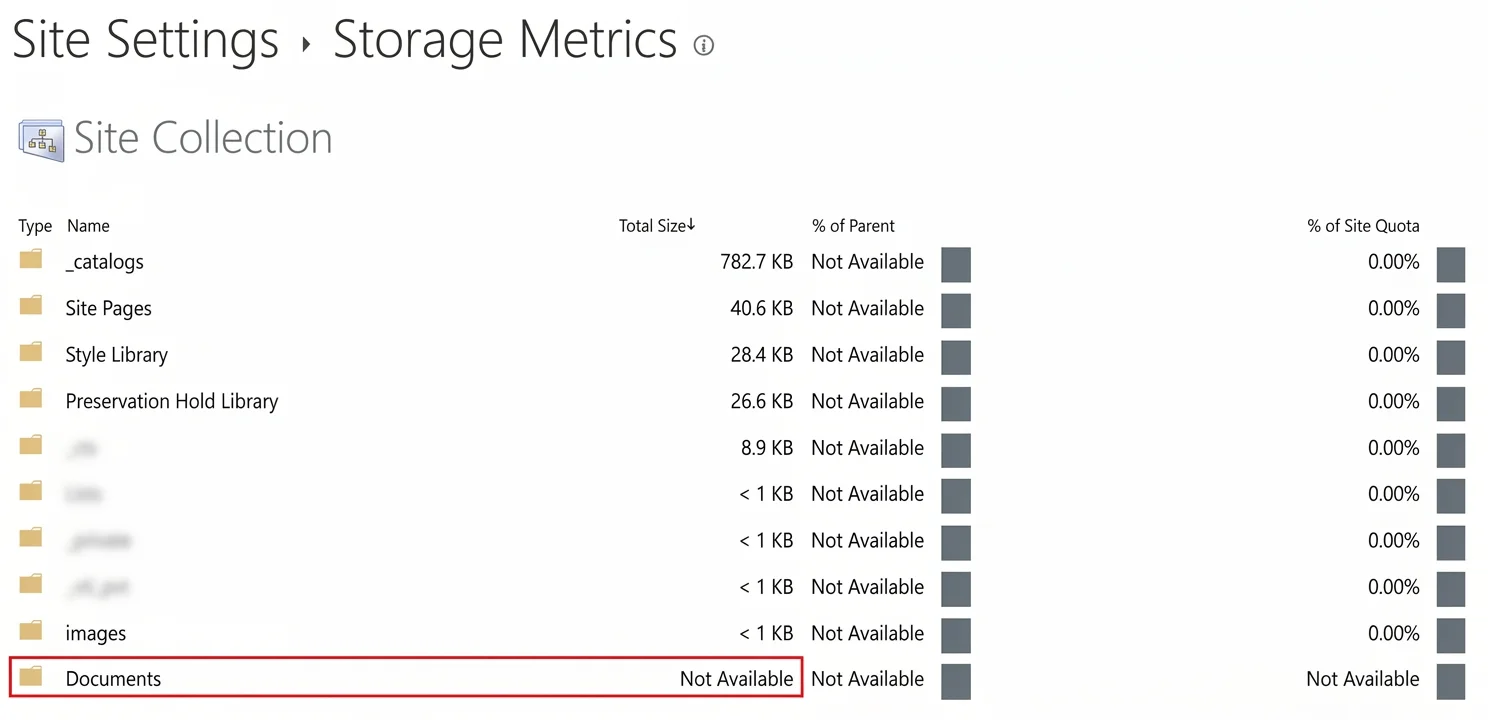
When SharePoint returns impossible storage sizes for lists or libraries, Rencore Governance detects the issue, corrects the stored value, and shows a warning. You can verify the value in SharePoint's Storage Metrics page; an affected list displays "Not Available". To resolve the issue, open a support case with Microsoft including the details from the warning.
A SharePoint scan reports that SharePoint returned an impossible storage size for a list or library. The scan continues and the list is still added to the InventoryInventoryThe inventory is the record of every object Rencore Governance scans from your tenant, with their properties and the relations between them.Read more, but Rencore Governance stores a corrected size for it.
What you see
The warning:
Invalid storage metrics collected for SharePoint list: [ ListUrl: {list URL}, TotalFileStreamSize: {number}, TotalSize: {number} ]
Why it happens
SharePoint keeps its own storage counter for every list and library. Rencore Governance reads two values from it: the size of the files (TotalFileStreamSize) and the total size of the list (TotalSize).
The warning appears when one of these values cannot be true:
- The file size is below zero.
- The total size is below zero, or smaller than the file size.
The fault is in SharePoint’s storage counter, not in the Rencore Governance scan.
What Rencore Governance does
Rencore Governance does not store the invalid values:
- A file size below zero is stored as 0.
- A total size below zero, or below the file size, is stored as the file size.
The warning shows that the stored size was changed. It comes back on every scan for as long as SharePoint returns the invalid value.
How to check the value in SharePoint
To check the value in SharePoint, you will need to:
-
Copy the list URL from the warning.
-
Open the Storage Metrics page of the site that contains the list:
https://<tenant>.sharepoint.com/sites/<site>/_layouts/15/storman.aspx -
Find the list or library in the table.
-
Check the “Total Size” column. For an affected list or library, SharePoint shows “Not Available”.
How to fix it
The value comes from the Microsoft service, so only Microsoft can correct it.
- Open a case with Microsoft Support.
- Include the list URL and the TotalFileStreamSize and TotalSize values from the warning.
- Once Microsoft has corrected the value, wait for the next scan. The warning no longer appears.
Frequently asked questions
What does the invalid storage metrics warning mean?
SharePoint returned an impossible storage size for a list or library. The scan continues and the list is still added to the Inventory, but Rencore Governance stores a corrected size instead.
Can I fix this invalid storage metric myself?
No. The fault is in SharePoint's storage counter. Contact Microsoft Support with the list URL and the TotalFileStreamSize and TotalSize values from the warning. Once Microsoft corrects the value, the warning no longer appears in the next scan.
How do I check if this is really a SharePoint problem?
How do I check if this is really a SharePoint problem?Copy the list URL from the warning and open the Storage Metrics page for that site. Find the list in the table and check the Total Size column. If it shows Not Available, SharePoint has the invalid value.
Are the storage sizes in Rencore Governance correct for an affected list?
Not exactly. Rencore Governance replaces the invalid values: a negative file size is stored as 0, and a total size that is negative or below the file size is stored as the file size. The real total size can be larger, so treat the stored value as a lower limit until Microsoft fixes the counter.
When will this warning stop appearing?
The warning reappears on every scan as long as SharePoint returns the invalid value. Once Microsoft corrects it, the warning no longer appears in the next scan.
Was this page helpful?
Thanks for the feedback.
Thanks. What was wrong?