 Trigger a webhook for Power Automate
AI summary
Trigger a Power Automate flow from a Rencore Governance automation using a Trigger Webhook action. You copy your flow's HTTP endpoint and configure the action in Rencore to call it.
Trigger an external webhook, such as a Microsoft Power Automate flowFlowA flow is a Power Automate workflow, made of a trigger and actions, that runs a task automatically across apps and services.Read more, from a Rencore Governance automation. You use the automation actionsAutomation actionAn automation action is a single operation an automation step performs, such as sending an email or archiving a Team.Read more Send HTTP requestWebhookA webhook is a URL another system listens on, so that a call to it starts something there.Read more or Trigger webhook. This example calls a Power Automate flow with the trigger “When a HTTP request is received”.
Before you begin
- Your Rencore role includes the Create AutomationAutomationAn automation is a workflow Rencore Governance runs on inventory objects when a trigger fires.Read more permission. Owner, Admin and Contributor have it. See Rencore roles.
- A Power Automate flow with the trigger “When a HTTP request is received”, or the rights to create one.
Steps
Get the URL of your flow
-
Go to Microsoft Power AutomatePower AutomatePower Automate, formerly Microsoft Flow, is the Microsoft low-code tool for automated workflows called flows.Read more.
-
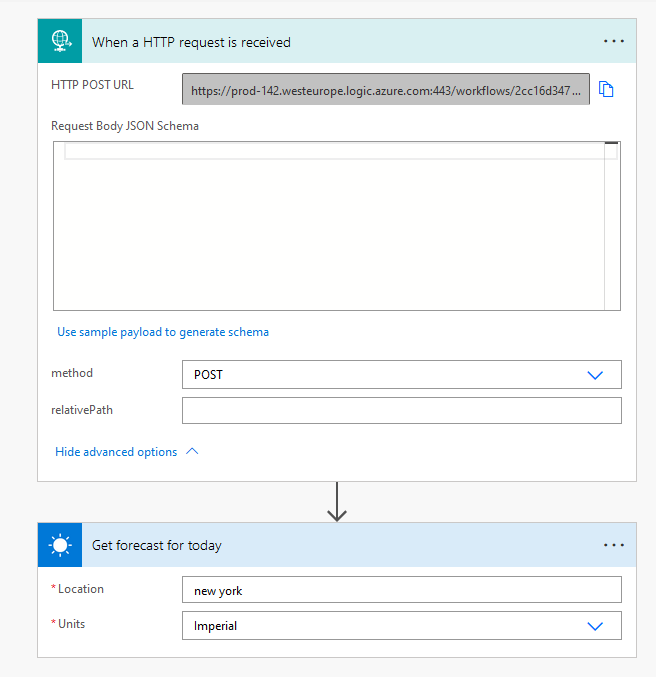
Open the flow, or create a new flow with the trigger “When a HTTP request is received”.
-
Copy the HTTP Post URL from the trigger. You enter it in Rencore Governance next.
Create the automation
-
Go to Automation > Add Automation > Create Custom Automation.
-
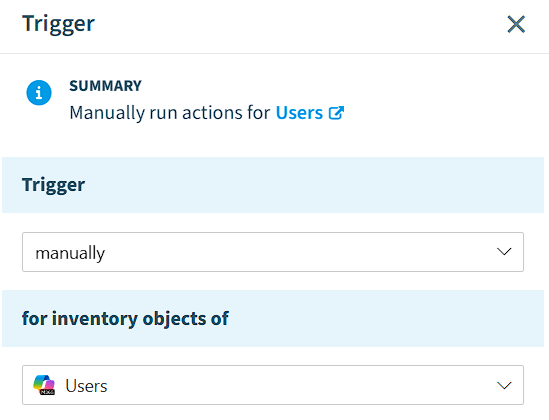
Set the Trigger to manually and “for inventory objectsInventory objectAn inventory object is one item Rencore Governance has scanned from a connector, such as a single Team, SharePoint site collection, user or Power App.Read more of” to Users.
-
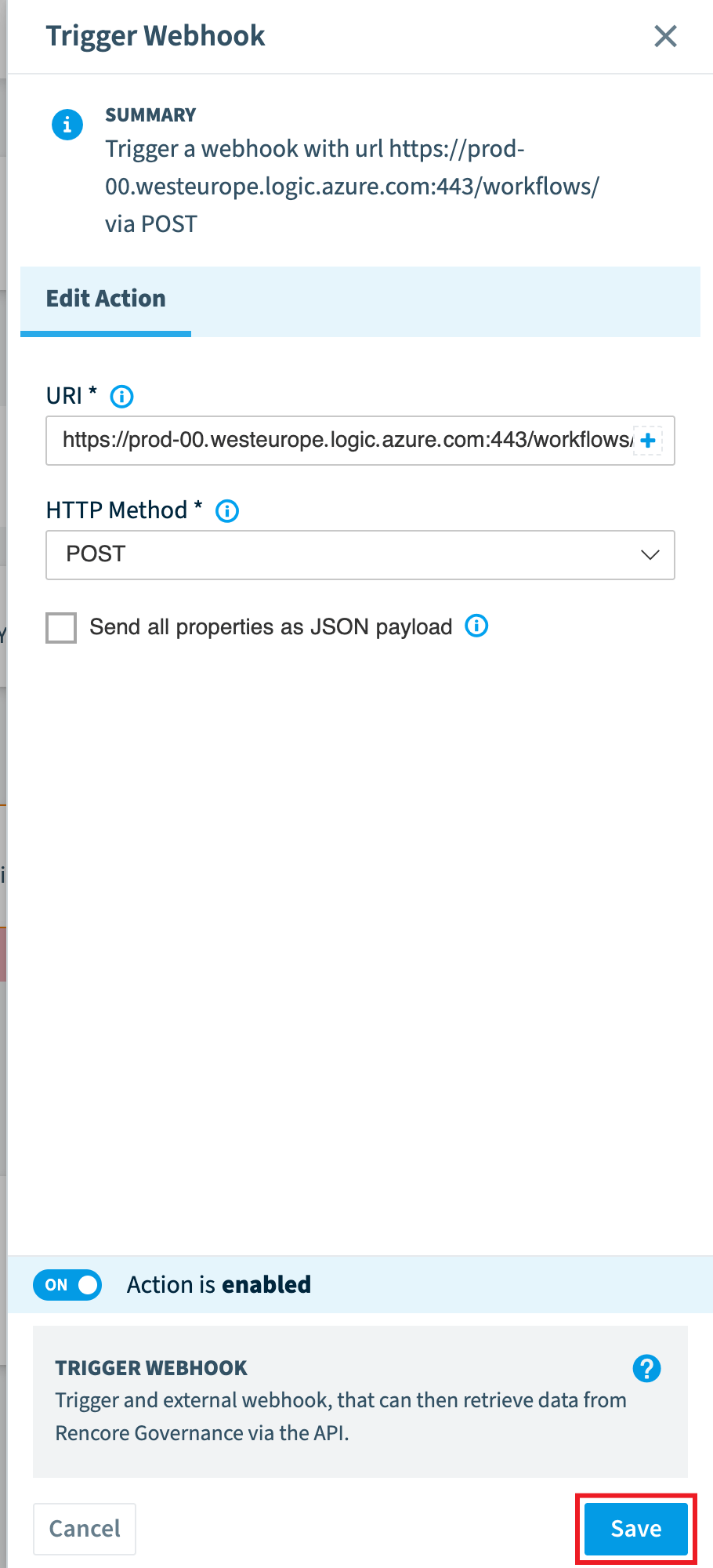
Click + and select Trigger Webhook (or Send HTTP request action).
-
Enter the HTTP Post URL of your flow in the URI field.
-
Set the HTTP Method to the same method as in your flow (e.g. POST).
-
Click Save.
-
Click Next.
-
On the Details page, enter a Title and a Description that identifies the purpose of the automation.
-
Choose a Category, if one fits, and an Icon.
-
Click Done.
What you see
Every time the automation runsAutomation batchAn automation batch is the group of automation runs that started from the same trigger at the same time.Read more on a user, it sends an HTTP request to your flow’s endpoint.
Frequently asked questions
Which Rencore role permission do I need to trigger a Power Automate webhook from an automation?
Which Rencore role permission do I need to trigger a Power Automate webhook from an automation?You need the Create Automation permission. The Owner, Admin and Contributor roles include it.
Where do I get the URL to enter in the URI field for a Power Automate flow?
Where do I get the URL to enter in the URI field for a Power Automate flow?Open the flow in Microsoft Power Automate, using the trigger "When a HTTP request is received", and copy the HTTP Post URL from the trigger. Then enter that URL in the URI field of the Trigger Webhook or Send HTTP request action in Rencore Governance.
Which HTTP method should I choose for the trigger webhook action?
Set the HTTP Method to the same method your flow uses, for example POST. Rencore Governance then sends an HTTP request to the flow's endpoint every time the automation runs on a user.
Was this page helpful?
Thanks for the feedback.
Thanks. What was wrong?