 Send a Teams notification for policies
AI summary
You can automatically notify your team by posting messages to a Teams channel whenever automations run, such as when policies are violated. Set up an incoming webhook in Teams and create an automation action that sends a custom notification message. The automation allows you to specify the trigger condition and customize the message content to inform your team about governance events.
Post a message to a Teams channelChannelA channel is a section inside a Microsoft Teams team where members hold conversations and share files on one topic.Read more whenever an automation runsAutomation batchAn automation batch is the group of automation runs that started from the same trigger at the same time.Read more, for example on a policy violationViolationA violation is an inventory object that matches the rule of an active policy, such as a Team with no owner.Read more. You first create an incoming webhook in TeamsMicrosoft TeamsMicrosoft Teams is the Microsoft 365 app for chat, meetings and team collaboration.Read more, then an automation that uses it.
Before you begin
- Your Rencore role includes the Create AutomationAutomationAn automation is a workflow Rencore Governance runs on inventory objects when a trigger fires.Read more permission. Owner, Admin and Contributor have it. See Rencore roles.
- You can add connectors to the Teams channel that should receive the message.
- The Send message to a static Teams channel action uses the “Incoming Webhook” connector of Microsoft Teams and sends the message as a connector card. Microsoft is retiring Office 365Microsoft 365Microsoft 365 is the Microsoft cloud suite of Teams, SharePoint, OneDrive, Exchange and the Office apps.Read more connectors in Teams, and a Workflows webhook URL has not been tested with this action. If your channel cannot add an “Incoming Webhook” connector, use the Post a message to a Teams channel action instead. It posts to the channel through Microsoft GraphMicrosoft GraphMicrosoft Graph is the Microsoft API that gives access to the data of the Microsoft 365 services.Read more and needs no webhook.
Steps
Create a Teams webhook
-
Open the Microsoft Teams client.
-
Go to the team and channel where you want to send the notification.
-
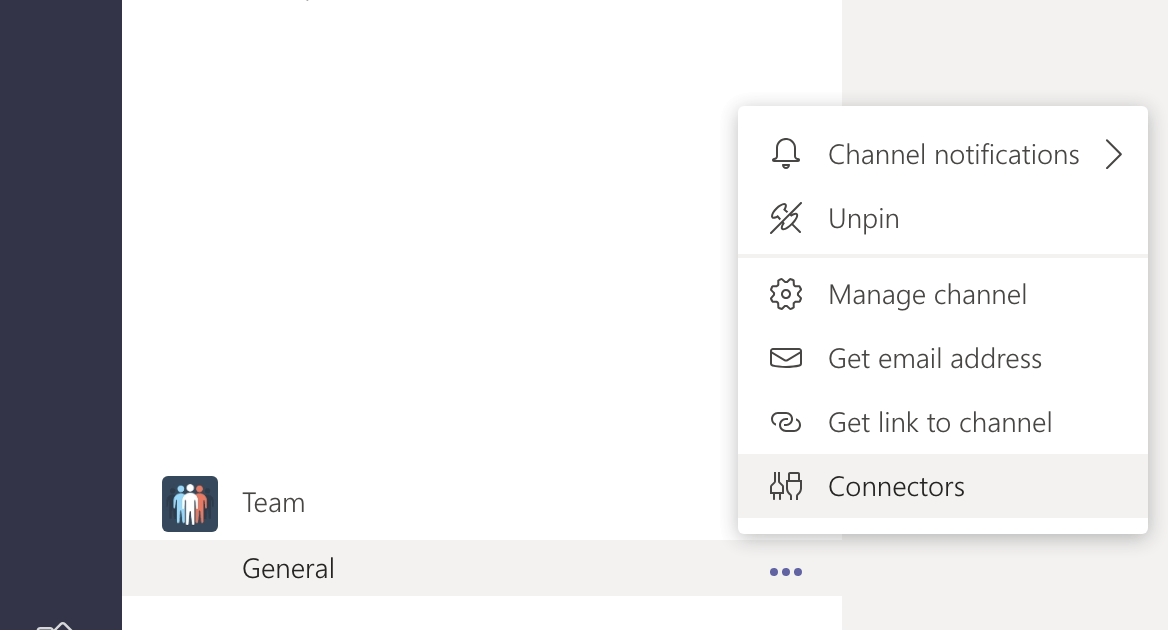
Open the action menu of the channel and click ConnectorsConnectorA connector is the part of Rencore Governance that reads one service, such as Teams or SharePoint, into the inventory.Read more.
-
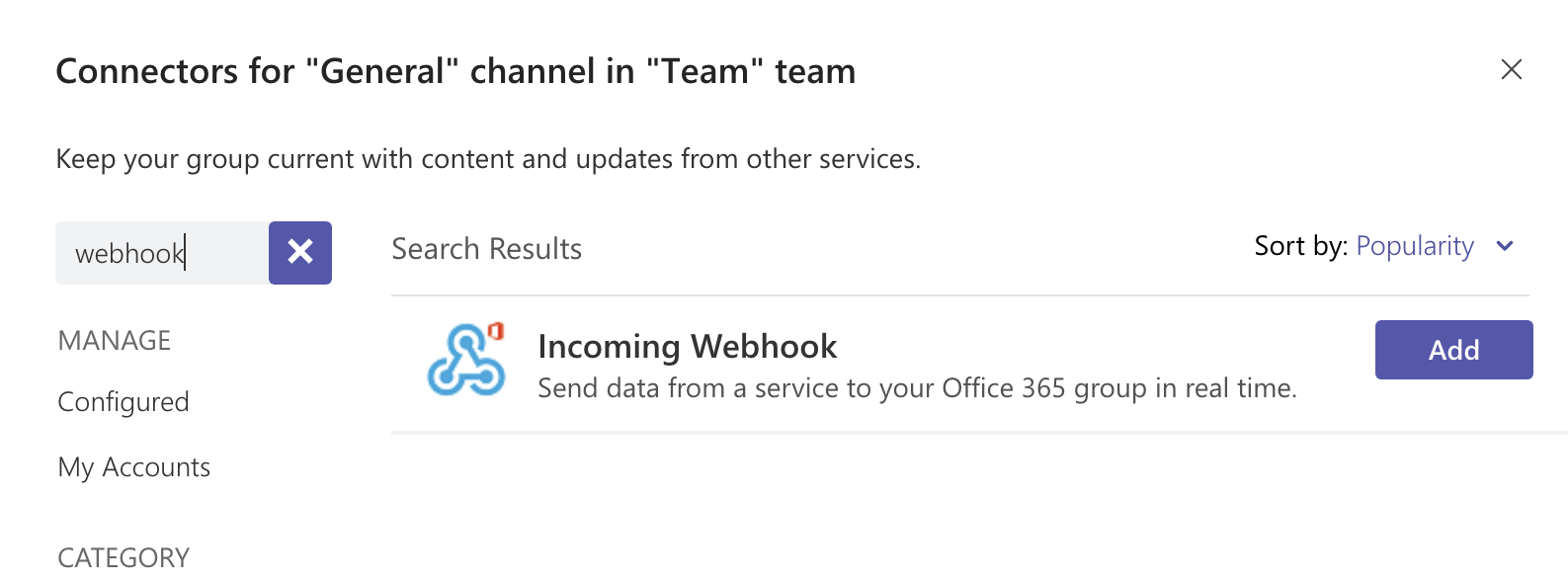
Search for “WebhookWebhookA webhook is a URL another system listens on, so that a call to it starts something there.Read more”.
-
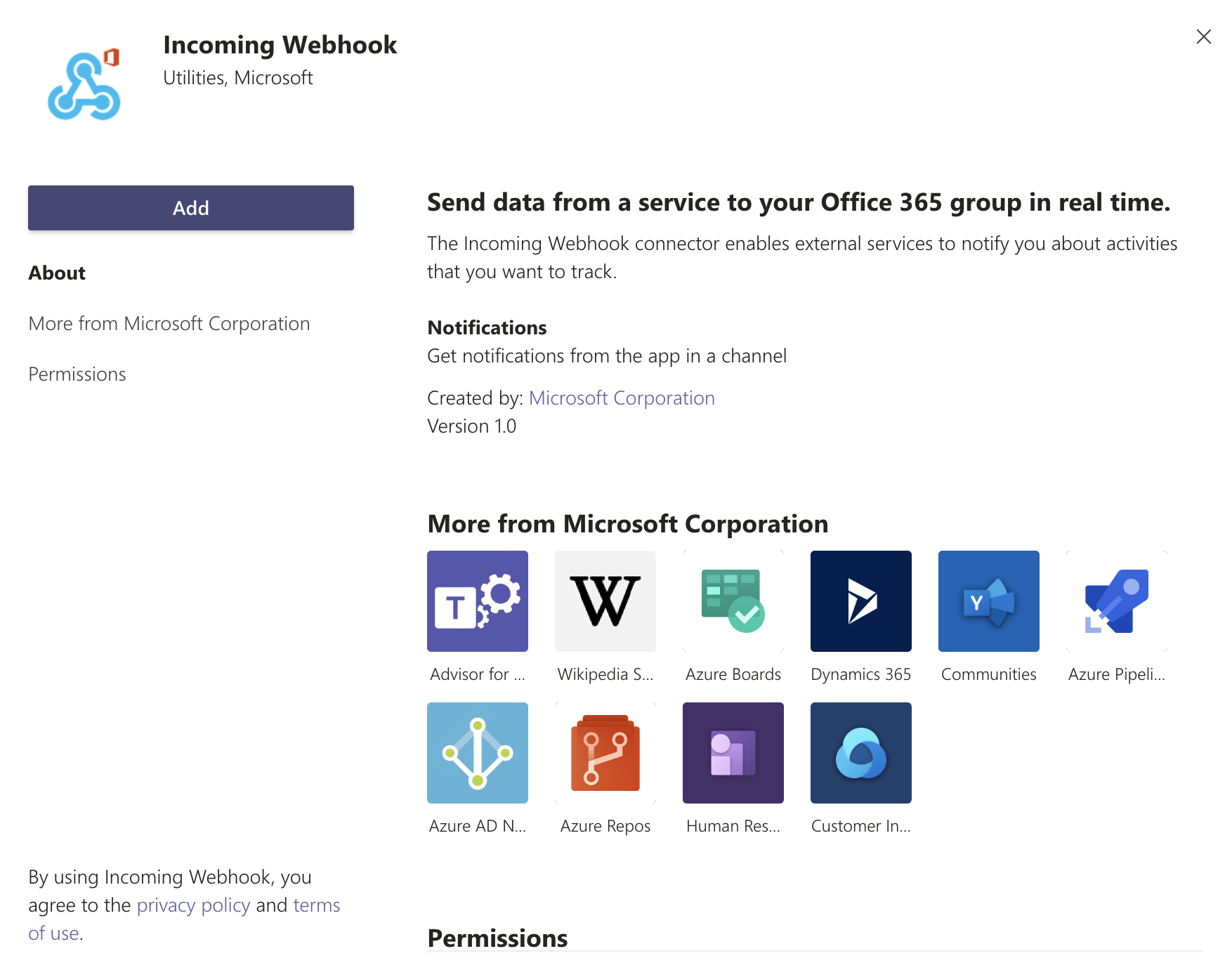
Click Add next to the “Incoming Webhook” connector, then Add on the connector detail dialog.
-
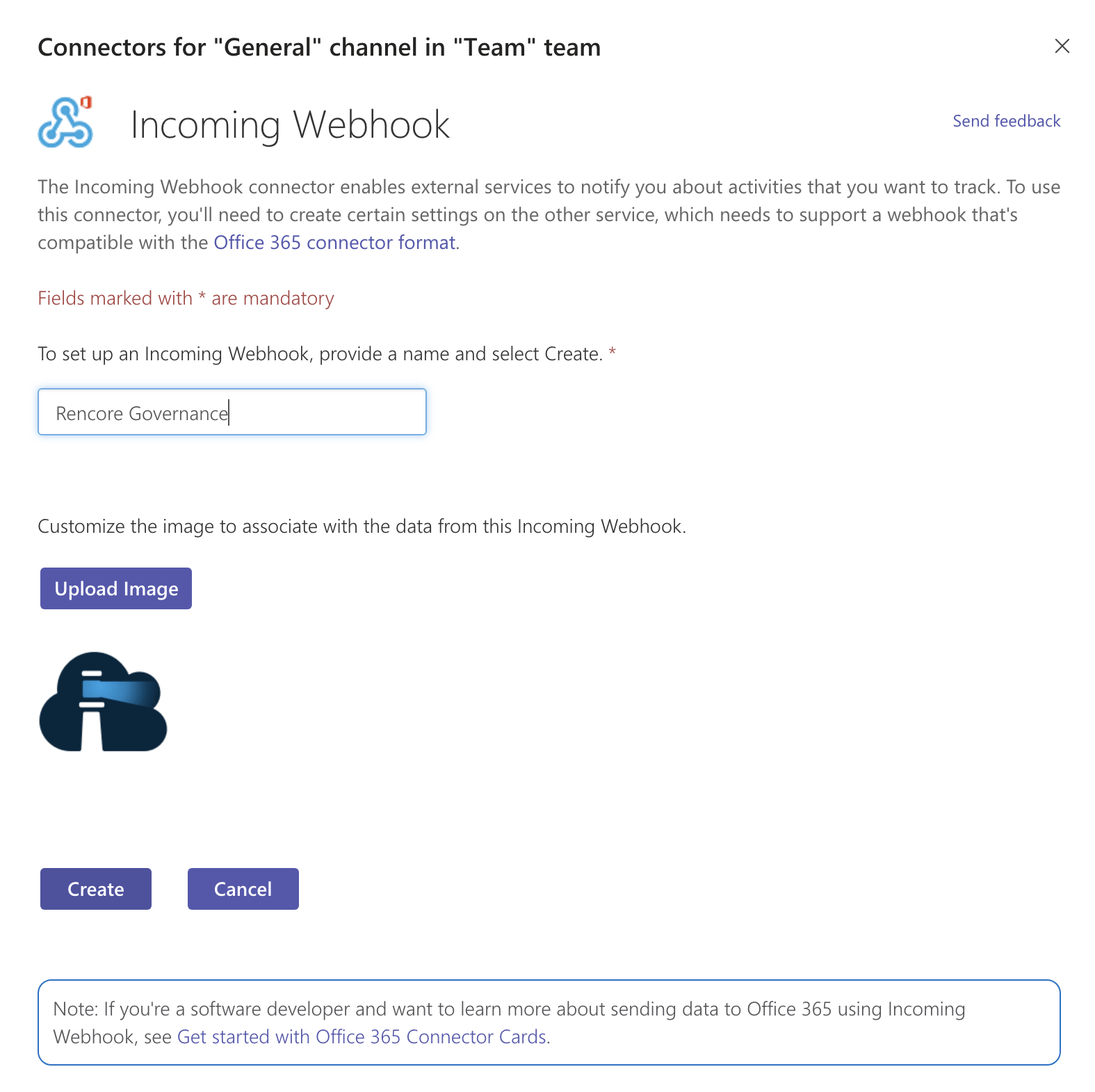
Enter a name and upload an image, for example the Rencore Governance logo.
-
Click Create.
-
Click the Copy Icon next to the webhook URL field.

-
Click Done.
Create the automation
- Go to Automation > Add Automation > Create Custom Automation.
- Set the trigger (e.g. on policy violation) and its settings (e.g. Disabled user accounts with assigned licenses), then click Next.
- Click + to add an action.
- Search for “Send message to a static Teams channel” and click Send message to a static Teams channel.
- Paste the copied URL into the Webhook URL field.
- Enter your name in Sender.
- Enter the message to post to the channel in Body (e.g. Quick Reminder, that {{User.DisplayName}}/{{User.UserEmail}} currently still has Licenses assigned to them, although they have been deleted. Please look into this and remove it where applicable.).
- Click Test Action to test the notification.
- Click Save.
- Click Next at the top of the page.
- Enter a Title, Description, Category and Icon for the automation.
- Click Done.
- Click Save and enable to turn the automation on, or Save as draft to save it without enabling it.
Frequently asked questions
Which permission do I need to create a Teams notification automation?
Which permission do I need to create a Teams notification automation?Your Rencore role must include the Create Automation permission. Owner, Admin and Contributor have it.
What can I do if my Teams channel cannot add an incoming webhook connector?
What can I do if my Teams channel cannot add an incoming webhook connector?Use the Post a message to a Teams channel action instead. It posts to the channel through Microsoft Graph and needs no webhook.
Can I use a workflows webhook URL with the send message to a static Teams channel action?
Can I use a workflows webhook URL with the send message to a static Teams channel action?This has not been tested. The Send message to a static Teams channel action uses the Incoming Webhook connector of Microsoft Teams and sends the message as a connector card. Microsoft is retiring Office 365 connectors in Teams.
How do I get the webhook URL for the Teams channel?
How do I get the webhook URL for the Teams channel?In Teams, open the channel action menu, click Connectors, and add the Incoming Webhook connector. Enter a name, click Create, then click the Copy Icon next to the webhook URL field.
How can I test the Teams notification before turning on the automation?
How can I test the Teams notification before turning on the automation?Click Test Action after you enter the Webhook URL, Sender and Body in the Send message to a static Teams channel action. Then click Save. You can later choose Save as draft to keep the automation disabled.
Was this page helpful?
Thanks for the feedback.
Thanks. What was wrong?