
Public Teams
AI summary
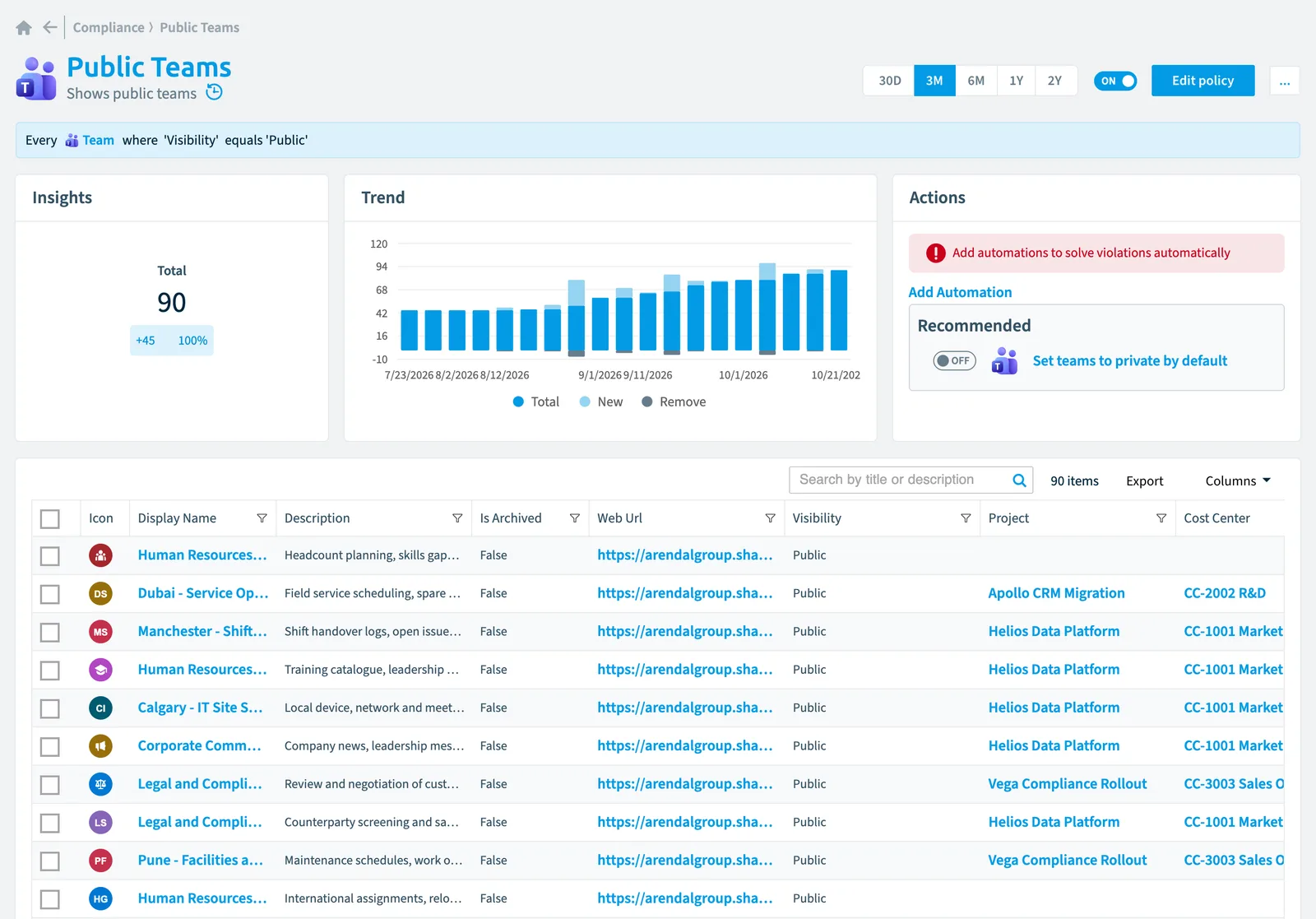
Public teams allow anyone in your organization to find and join without approval, risking sensitive content being shared broadly. This policy shows which teams are public so you can check whether each should be, and you can use the related automation to set teams to private by default.
What it detects
Shows public teams.
Why it matters
Anyone in your organization can find and join a public team without approval, and Microsoft names public teams and their sites as a common way files end up shared with everyone. Public is fine for open topics, but sensitive content ends up there too. Check that each public team should be public. The Set teams to private by default automation makes them private.
The rule
Every Team where Visibility equals 'Public'
In Rencore Governance
Details
| Applies to | Team |
|---|---|
| Connector | Teams |
| Severity | Information |
| Category | Security |
| Recommended | No |
| Recommended automation | None |
| License type | Standard |
Related policies
Other policies that check Team objects:
- Teams with a disabled owner account (Medium)
- Teams with private channels (Information)
- Teams with many channels (Information)
- Teams that use forbidden/misleading words in display name (Low)
- Teams with only disabled owner accounts (Medium)
- Teams that reach the 200 channel limit (Medium)
- Teams with very few owners (High)
- Teams with very few users (Medium)
- Teams with many users (High)
- Teams that reach the 100 owner limit (Medium)
- Inactive teams (Medium)
- Teams with inactive external users (Information)
- New Teams (Information)
- Team contains Copilot agent and external members (High)
- Teams with external users (Low)
- Teams with less than 2 owners (Medium)
- Teams with many owners (Low)
- Teams without owners (Medium)
- Teams that use prohibited words in the name or description (High)
Frequently asked questions
What does the public Teams policy detect?
What does the public Teams policy detect?The Public Teams policy shows public teams. The Public Teams policy checks Team objects from the Teams inventory and reports each match as a violation.
How severe is a violation of the public Teams policy?
How severe is a violation of the public Teams policy?Violations of the Public Teams policy have Information severity. The policy is in the Security category.
Which module includes the public Teams policy?
Which module includes the public Teams policy?The Public Teams policy comes with the Teams connector in the Digital Workplace module of Rencore Governance, which every Plan includes.
Was this page helpful?
Thanks for the feedback.
Thanks. What was wrong?