Un-anonymize user data
AI summary
Microsoft 365 hides user names in reports by default, which causes some Rencore Governance objects to show anonymized codes. As a Global Administrator, you can reverse this by disabling the de-identification setting in Microsoft 365 admin center Reports settings, and the actual names will appear after the next M365 connector scan.
Since September 1st, 2021, Microsoft hides user names in its Microsoft 365Microsoft 365Microsoft 365 is the Microsoft cloud suite of Teams, SharePoint, OneDrive, Exchange and the Office apps.Read more usage reports by default (pseudonymizationAnonymized user dataAnonymized user data is user information that Microsoft 365 replaces with de- identified names in its usage reports.Read more). Some objects in Rencore Governance come from those reports, so they show codes instead of names. A Global AdministratorGlobal administratorGlobal Administrator is the Microsoft Entra admin role with access to every administrative feature in the tenant, including giving admin consent to apps for the whole organization.Read more can turn this off, as described below. The following objects are affected in Rencore Governance:
- Message redirect rulesRedirect ruleA redirect rule forwards or redirects the incoming email of a mailbox to another recipient.Read more
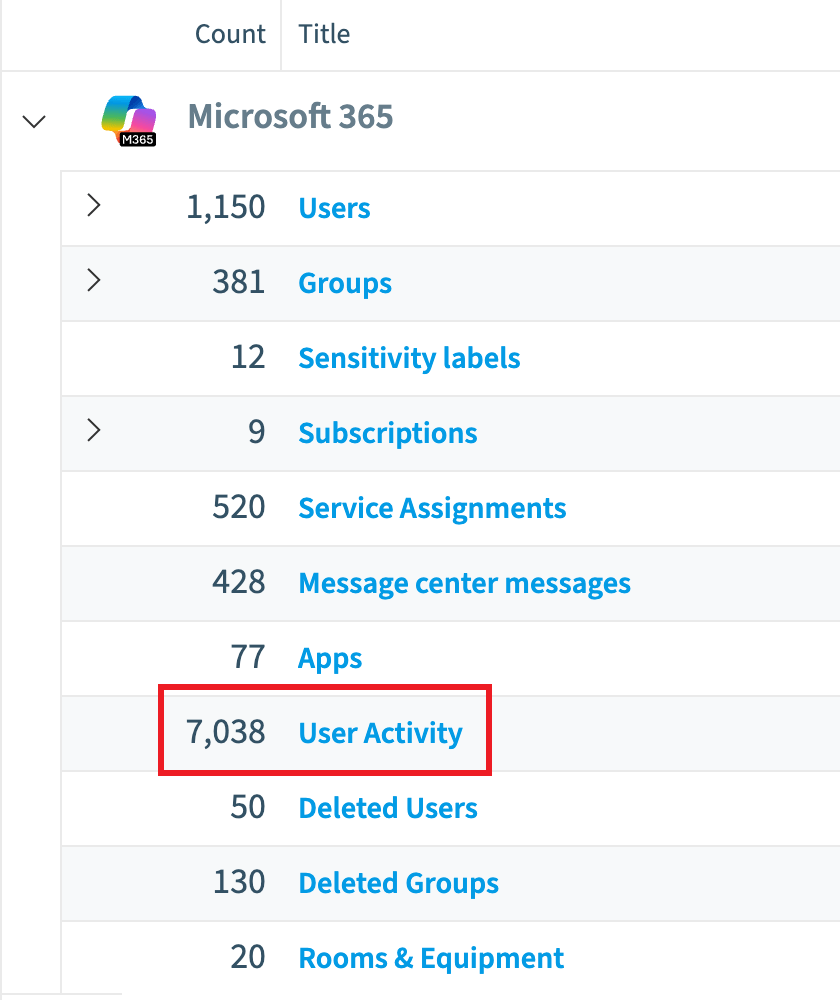
- User Activity
- Teams User Device Usage Reports
- Teams Usage Reports
- Teams User Activity Reports
- User MailboxesMailboxA mailbox is an Exchange Online recipient that stores email, calendar items and contacts.Read more (Shared Mailboxes not shown)
- User Registration Credentials
- Viva Engage communitiesViva Engage communityA Viva Engage community is a group in Viva Engage where people share posts, files and events around a team, project or interest.Read more
Example
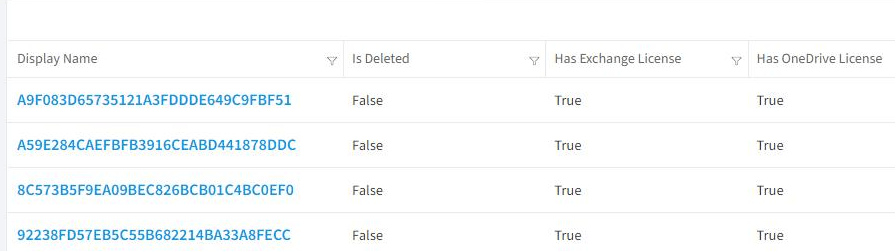
Global administrators can revert this change for their tenants and show identifiable user information if their organization’s privacy practices allow.
This can be achieved in the Microsoft 365 admin centerAdmin centerAn admin center is the web portal where administrators manage one Microsoft service, such as the Microsoft 365 admin center, the Teams admin center or the Microsoft Entra admin center.Read more by going to “Settings” > “Org Settings ”> “Services” and selecting Reports. Under Choose how to show user information, uncheck In all reports, display de-identified names for users, groups, and sites. As shown below:
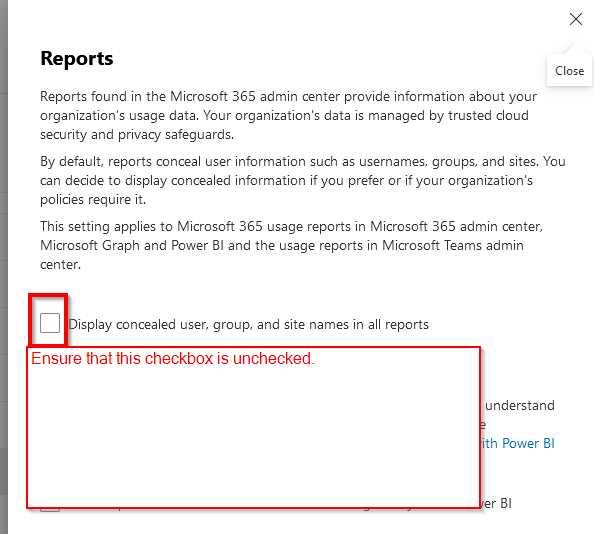
After the next scan of the M365 connector in Rencore Governance, the data will be un-anonymized again.
Frequently asked questions
Why do some objects in Rencore Governance show codes instead of user names?
Since September 1st, 2021, Microsoft hides user names in its Microsoft 365 usage reports by default (pseudonymization). Some objects in Rencore Governance come from those reports, so they show codes instead of names.
How do I show real user names again in Rencore Governance?
A Global Administrator goes to Settings > Org Settings > Services in the Microsoft 365 admin center and selects Reports. Under Choose how to show user information, uncheck In all reports, display de-identified names for users, groups, and sites.
 When will user names appear in Rencore Governance after I change the Microsoft 365 report setting?
When will user names appear in Rencore Governance after I change the Microsoft 365 report setting?User names appear after the next scan of the M365 connector in Rencore Governance. After that scan, the data is un-anonymized again.
Was this page helpful?
Thanks for the feedback.
Thanks. What was wrong?